Stale work report in Azure DevOps
Every Monday, email incomplete work items not changed in 14+ days (Closed Date empty) in Azure DevOps.
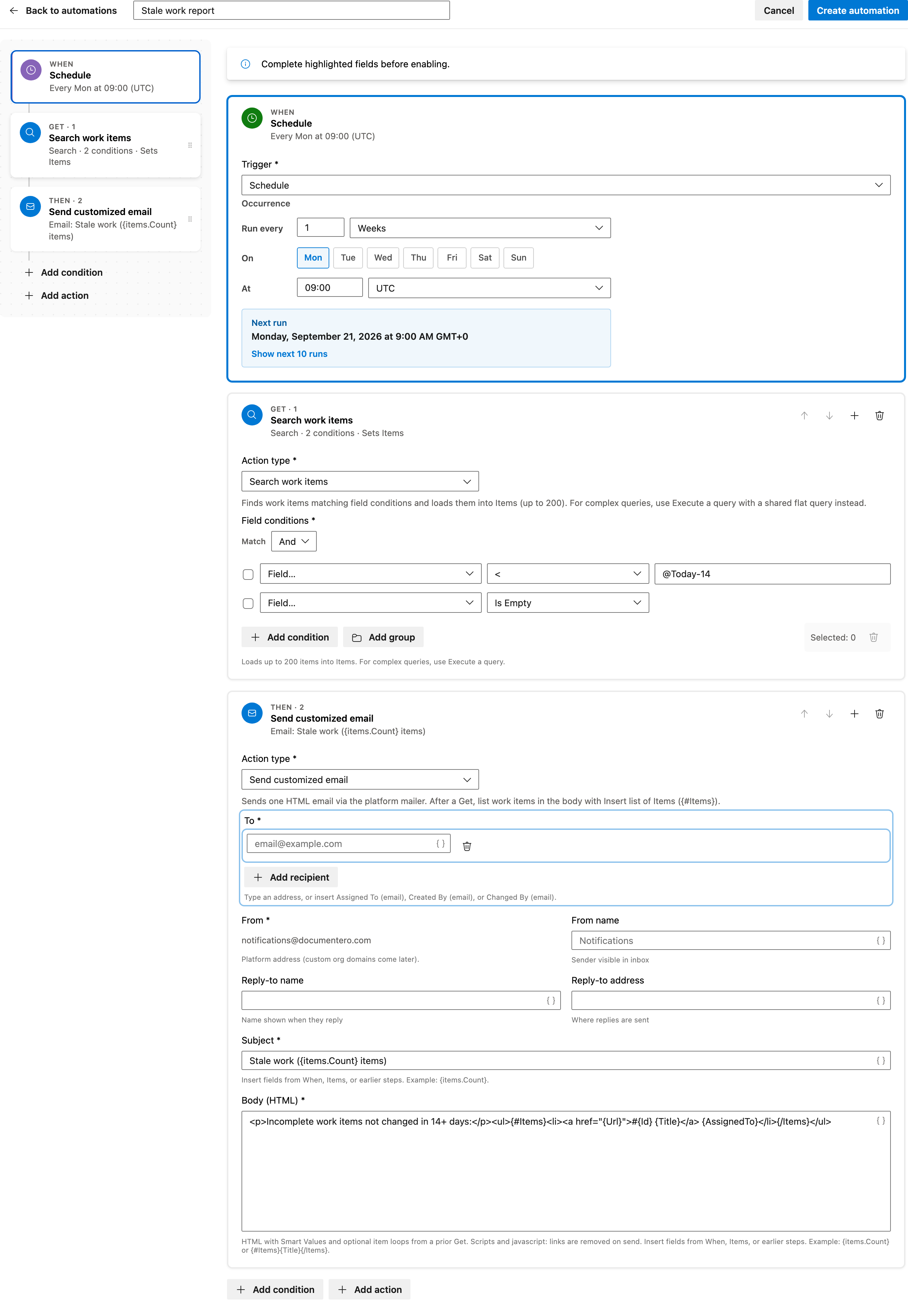
Before enabling this automation, you will need to set the email recipients, define the stale window, specify the work item types, and configure the timezone.
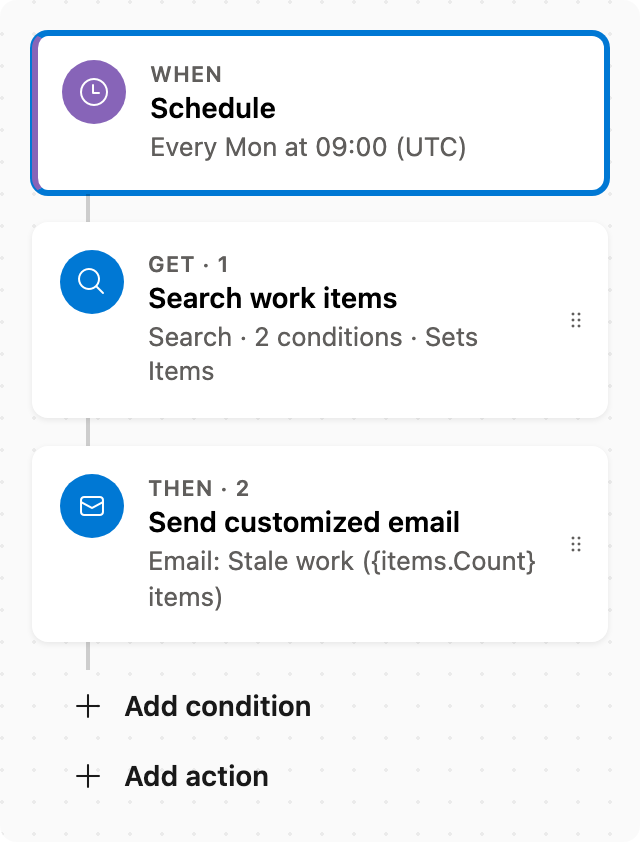
Prerequisite: Install Automations App on your Azure DevOps organization
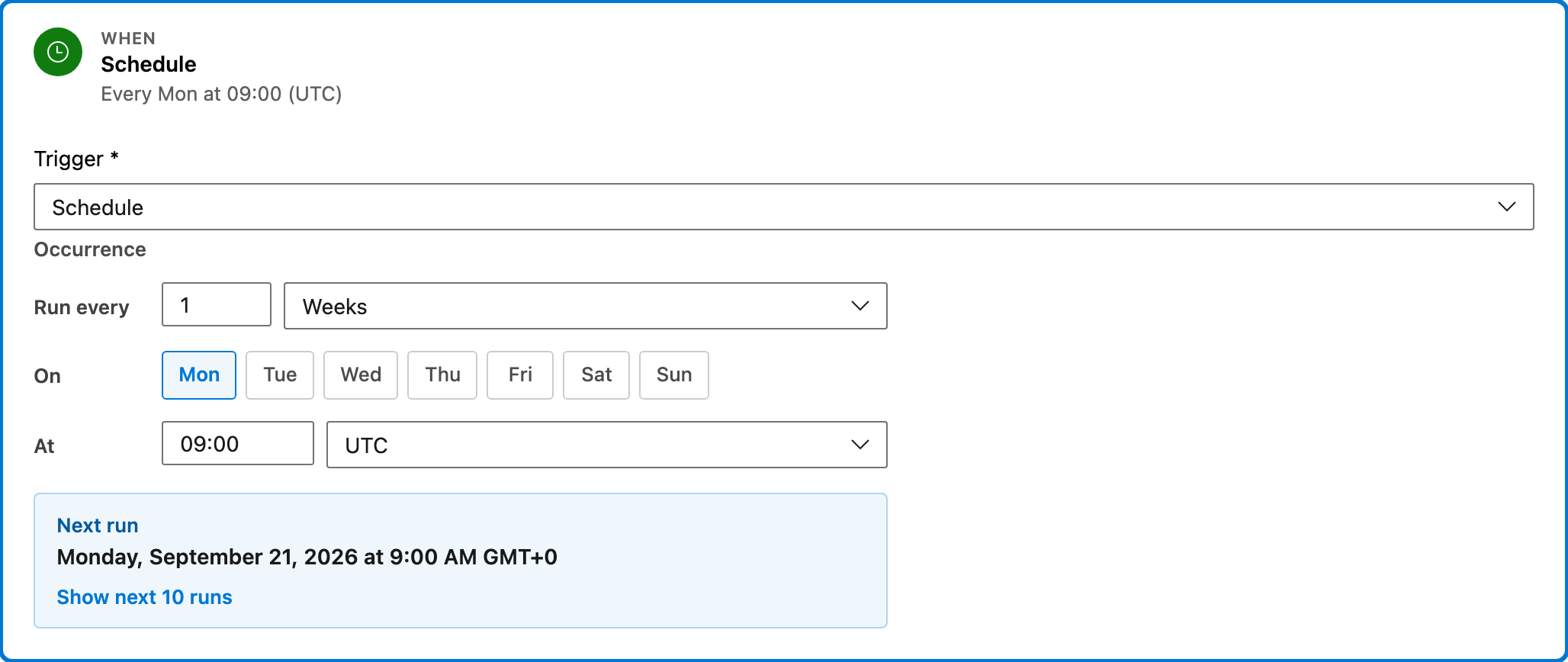
Trigger — Schedule
This step triggers the automation every Monday at 09:00 (UTC). It sets the schedule for when the report will be generated and sent.
Configured in this template
- Occurrence: Every Mon at 09:00 (UTC)
You can customize
- Change the day or time of the week to fit your reporting needs.
- Adjust the timezone to match your local time.
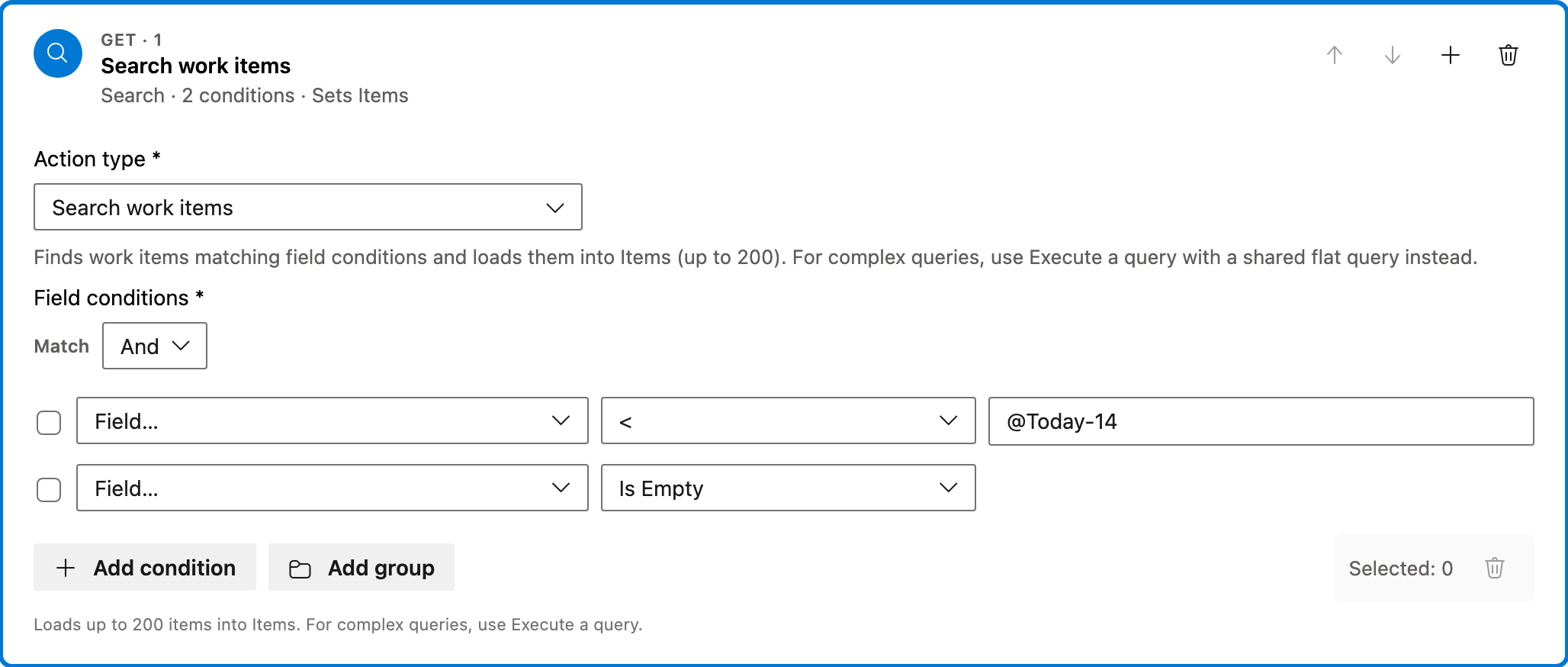
Get — Search work items
This step searches for work items that have not been changed in the last 14 days and have an empty Closed Date. It loads these items into the automation for further processing.
Configured in this template
- Field conditions:
- - Changed Date < @Today-14
- - Closed Date Is Empty
- logic: and
You can customize
- Modify the Changed Date condition to a different number of days.
- Include additional work item types such as Bug or User Story.
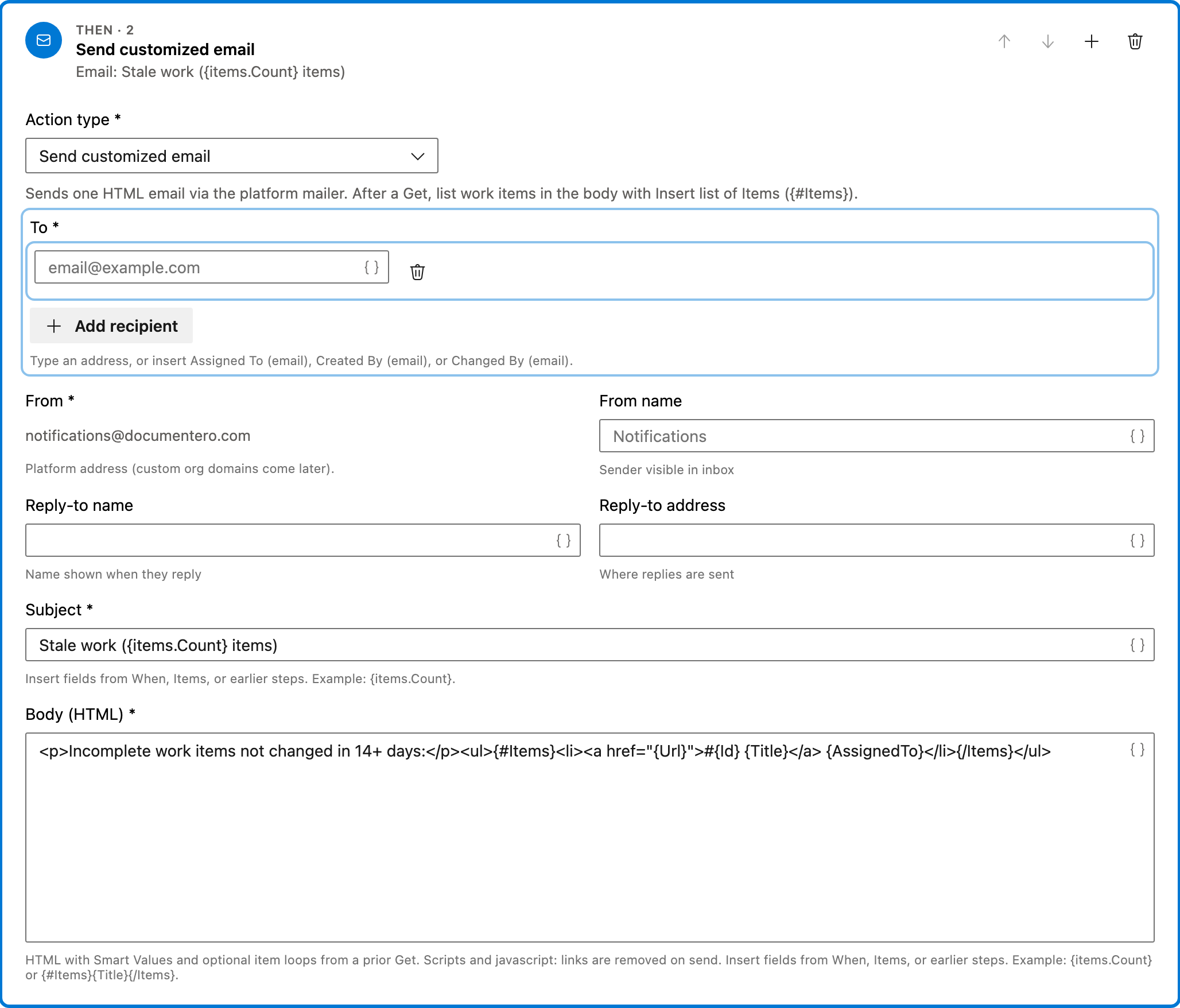
Action — Send customized email
This step sends an HTML email listing the stale work items. The email includes links to each work item and is sent from notifications@documentero.com.
Configured in this template
- To: (empty — add recipients)
- From: notifications@documentero.com
- Subject: `Stale work (
{items.Count}items)` - Body (HTML): `<p>Incomplete work items not changed in 14+ days:</p><ul>
{#Items}<li><a href="{Url}">#{Id}{Title}</a>{AssignedTo}</li>{/Items}</ul>`
You can customize
- Add or change email recipients.
- Customize the email subject or body to suit your needs.
Full automation
Common questions
How do I stale work report in Azure DevOps?
What fields must I fill before enabling the automation?
How can I change the work item types included in the report?
Can I test this automation before fully enabling it?
How do I adjust the schedule or timezone?

Visual Studio Marketplace
Automations
Automate Azure DevOps workflows with triggers, actions, conditions, and scheduled rules.
Other Schedule & bulk templates in Automations.
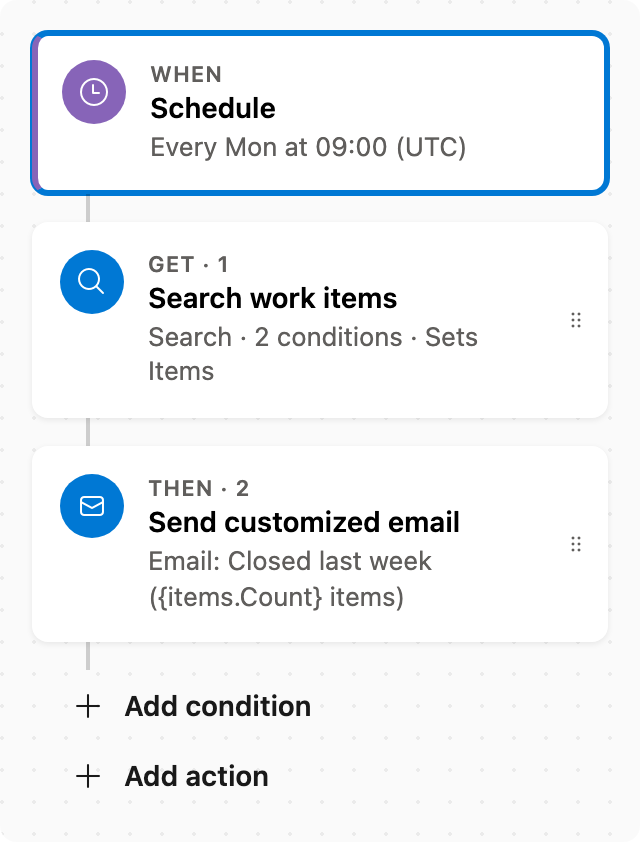
Weekly closed work report
Every Monday, email a report of work items whose Closed Date is in the last 7 days. Closed Date covers Done as well as Closed.
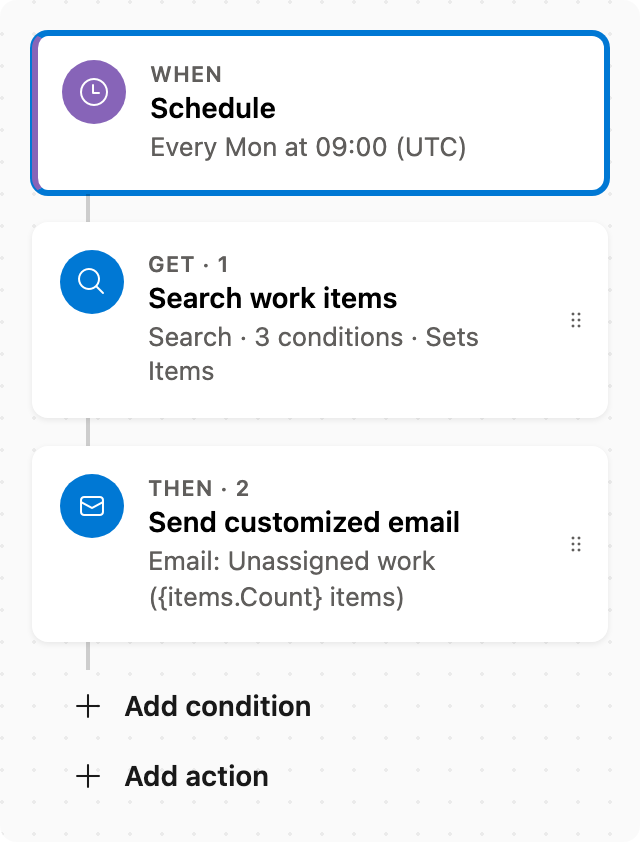
Unassigned work report
Every Monday, email incomplete work items with no assignee, excluding Proposed (New, To Do, …). Closed Date empty.
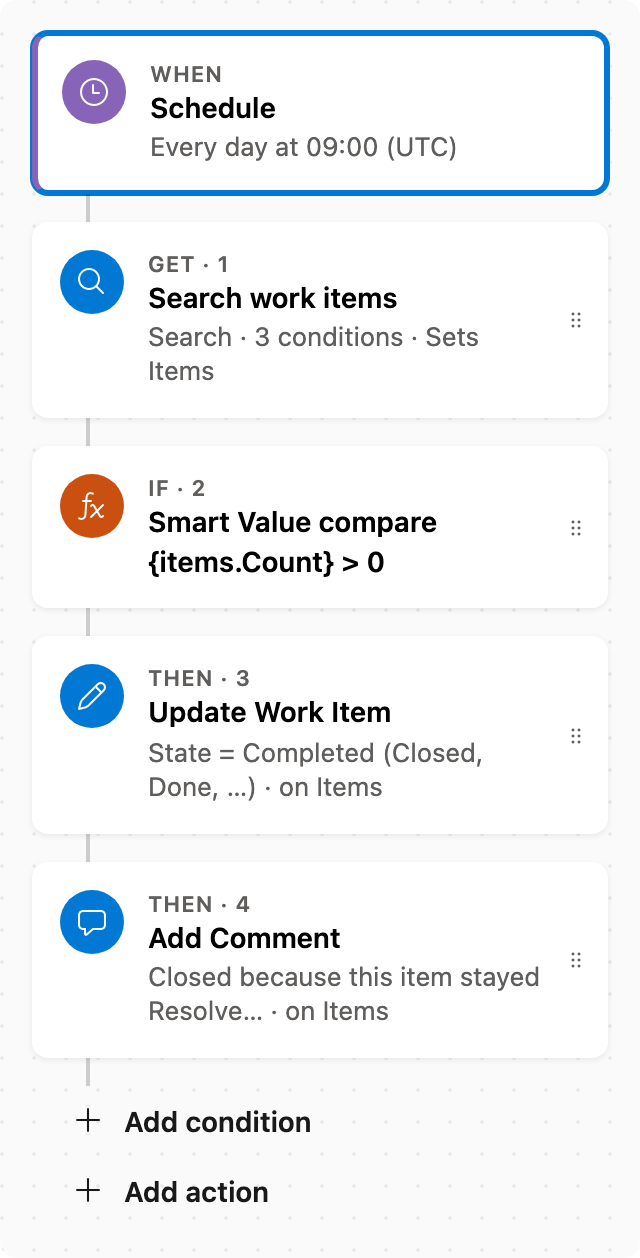
Close resolved work after 30 days
Daily, find items in the Resolved state category unchanged for 30+ days, set State to Completed (Closed or Done for the work item type), and add a comment (max 50 per run; the rest wait for the next day).
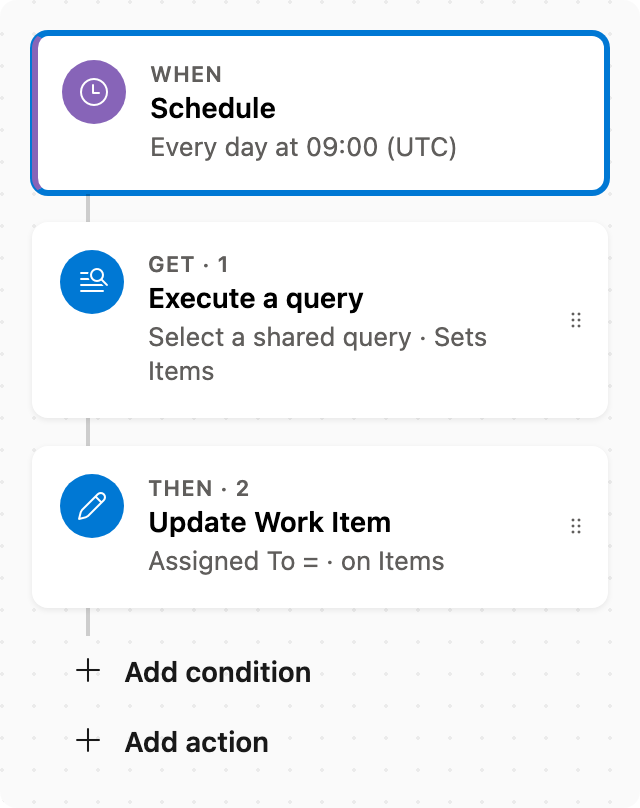
Bulk assign from a query
On a schedule, run a shared query and set Assigned To on matching items (max 50).