Export Azure DevOps Work Item History to Excel
Export Azure DevOps work item revision history to Excel. Items with History writes each field change, comment, and edit as a row, including who changed it and when.
Prerequisite: Install Export to Excel on your Azure DevOps organization
Export the work item to Excel
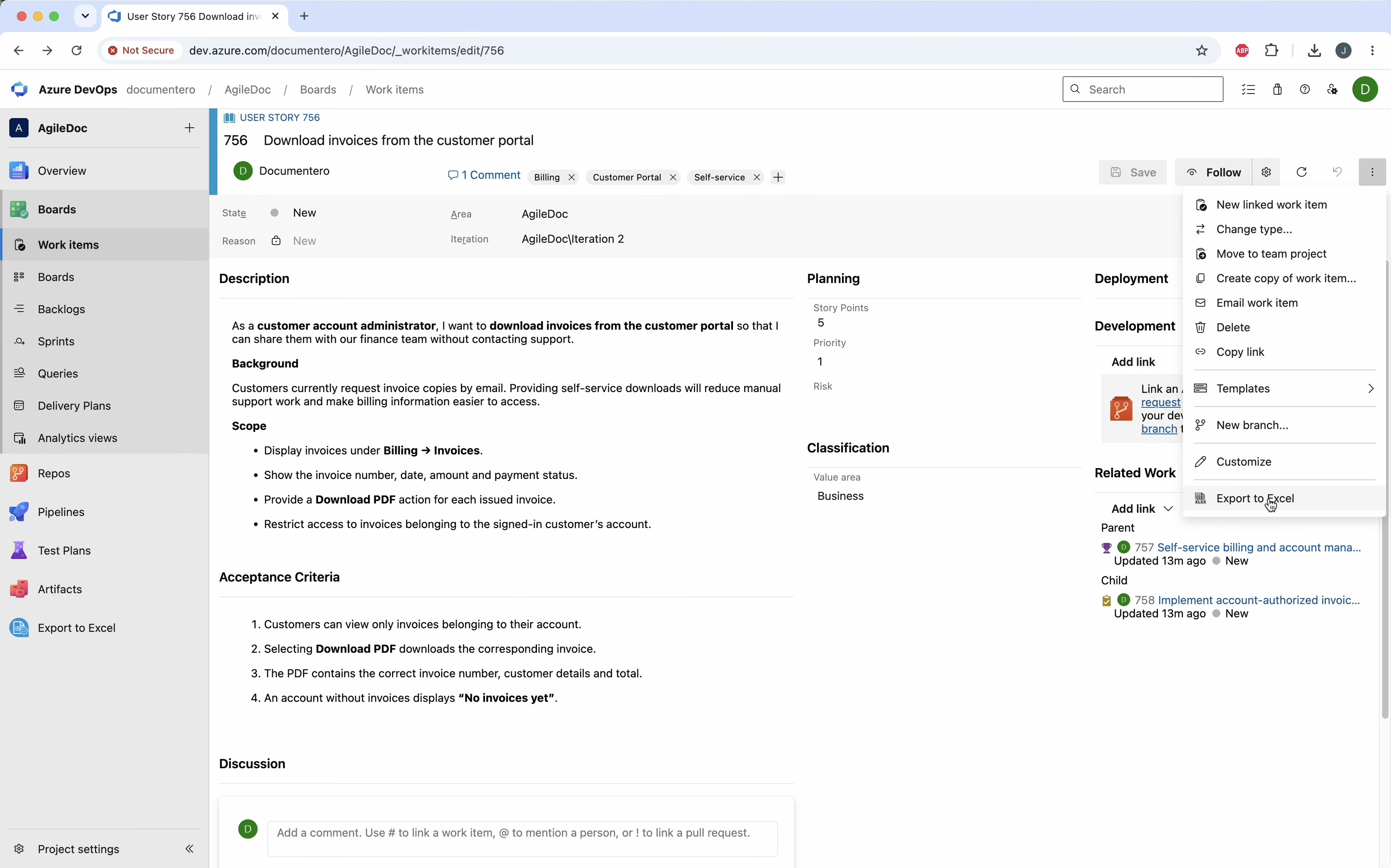
Select the work item and choose Export to Excel from the context menu.
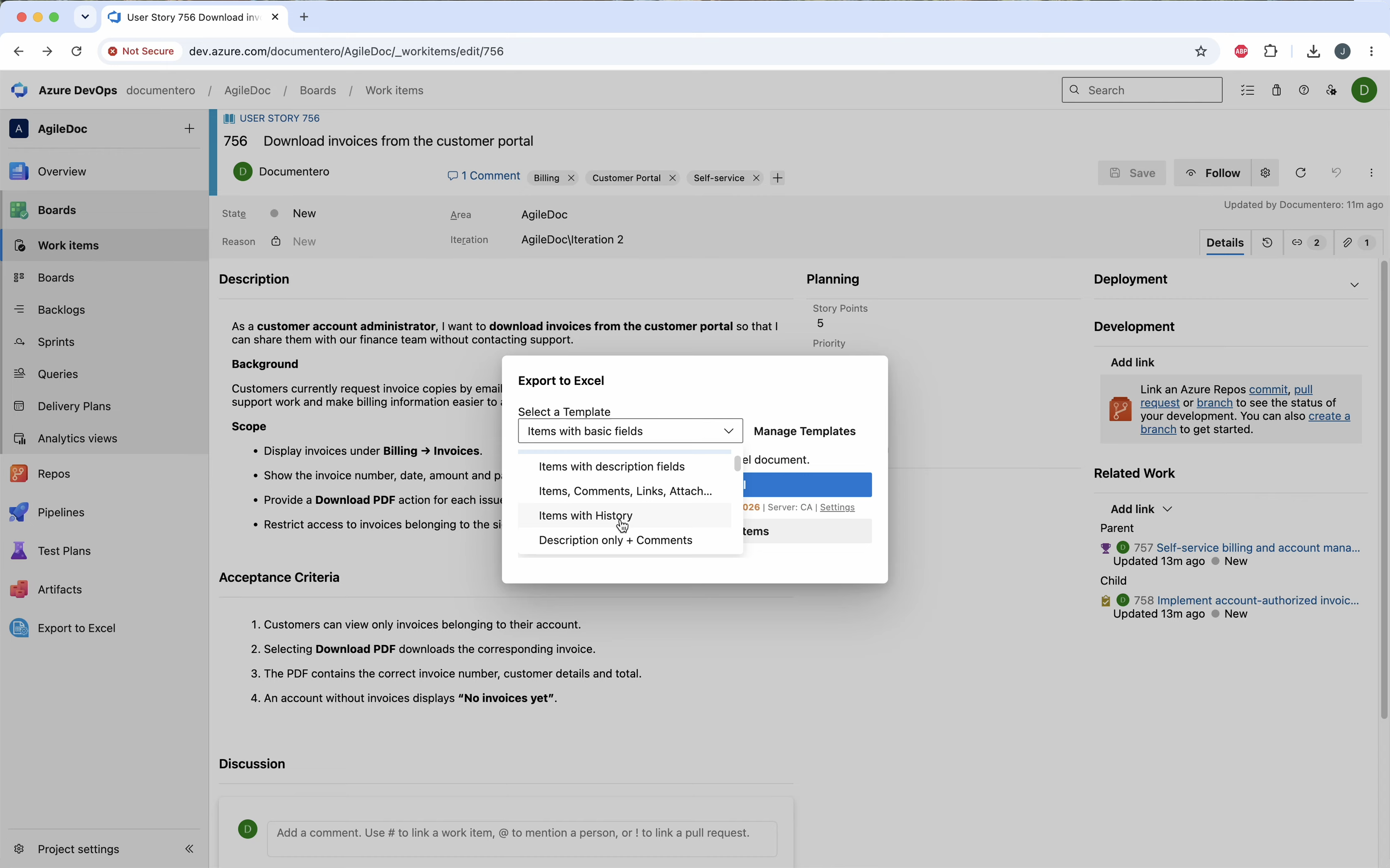
Choose the history template
In the dialog, select Items with History and export.
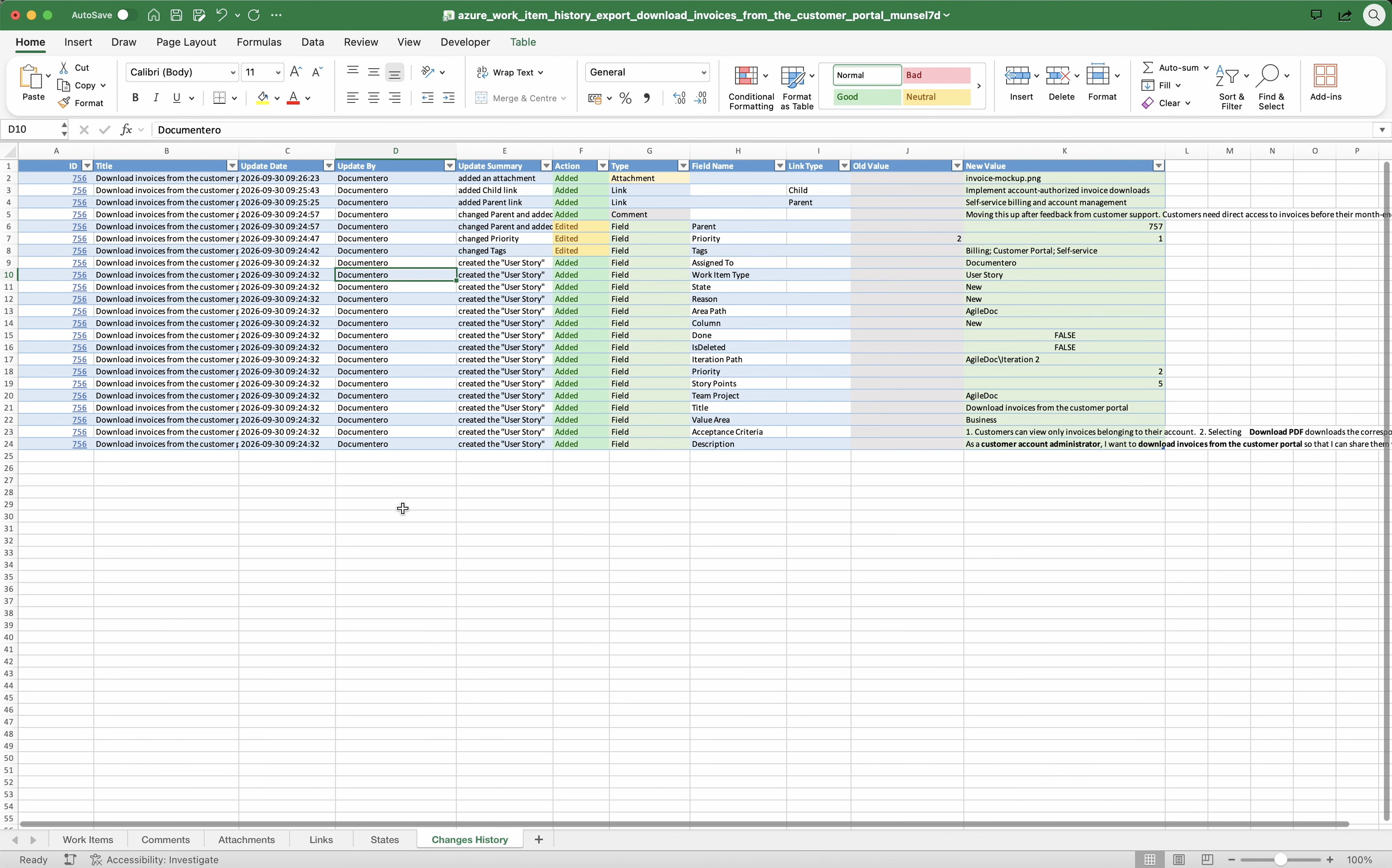
Review the revision history
Open the Changes sheet. Each row is one change, with the field, old and new values, who changed it, and when.
Common questions
How do I export Azure DevOps work item history to Excel?
What is on the history sheet?
How many work items can include history?
Visual Studio Marketplace
Export to Excel
Export work items, test plans, wiki pages, and work item history to Excel.
Other Export to Excel guides
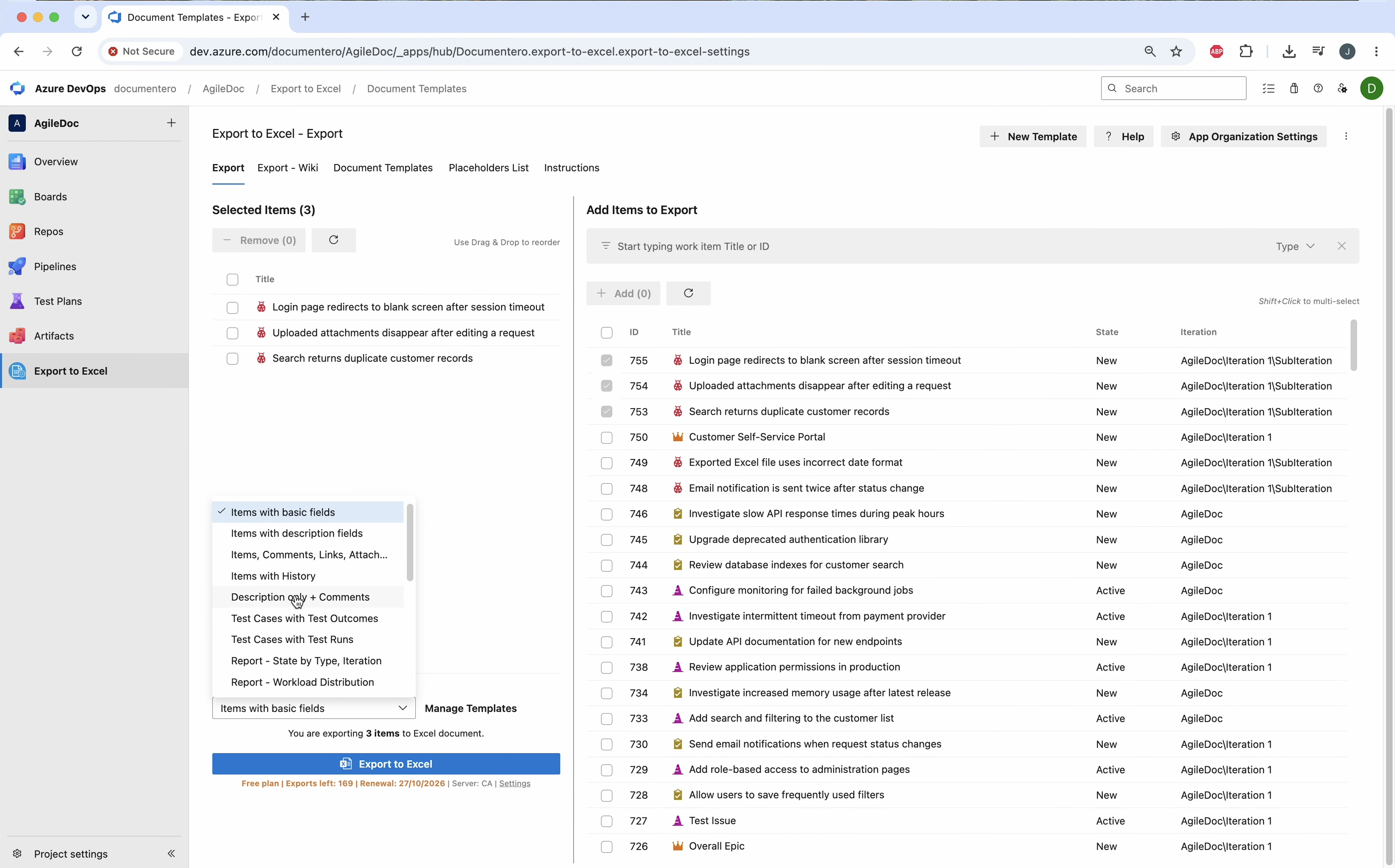
Export work items to Excel
Export Azure DevOps work items to a formatted Excel workbook, not a CSV. Comments, attachments, and links each get their own sheet. Start from the extension, a sprint, or a query.
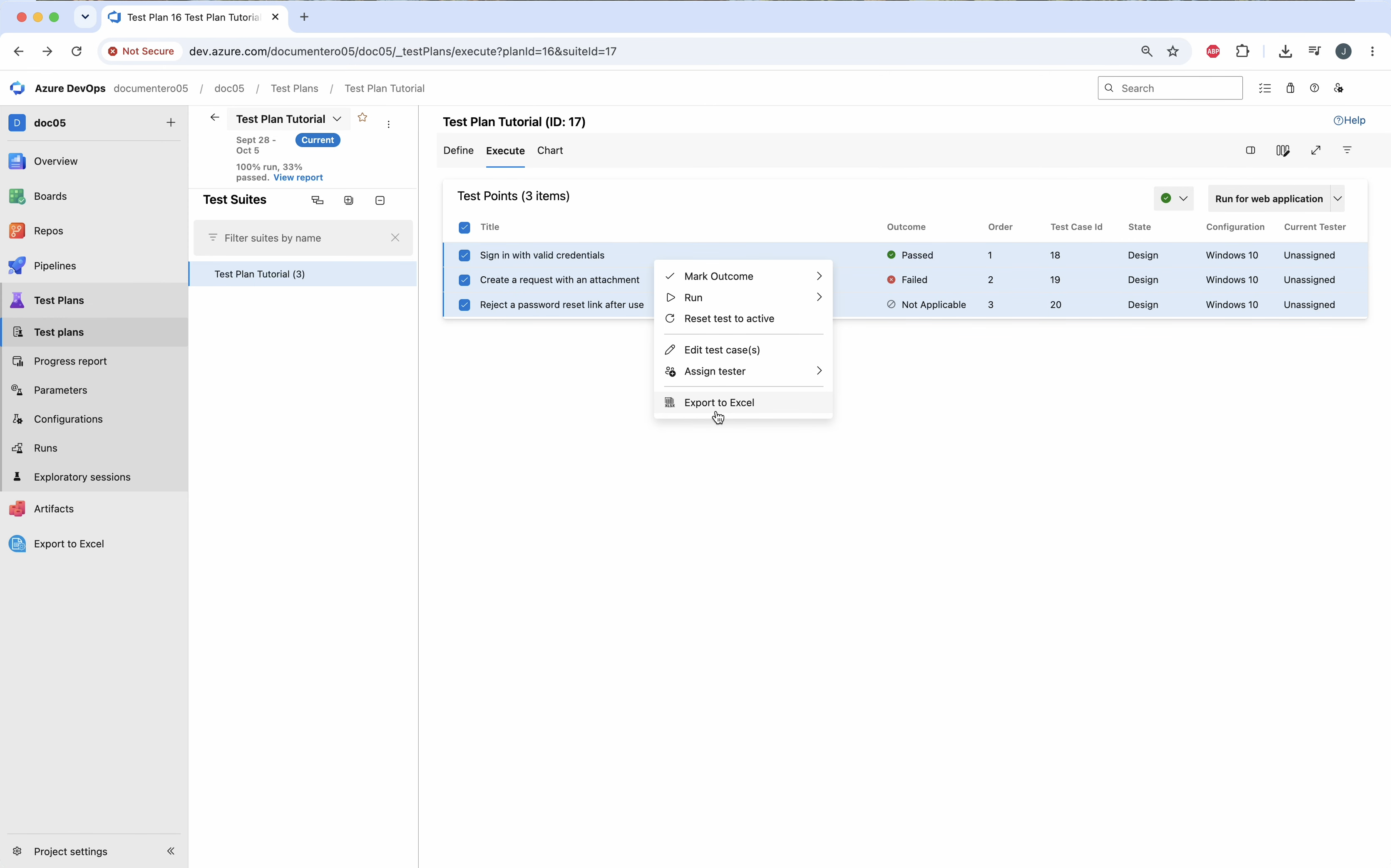
Export test plans to Excel
Export Azure DevOps test results to Excel. Use Test cases with Test Outcomes for a result per case, or Test cases with Test Runs for every step.
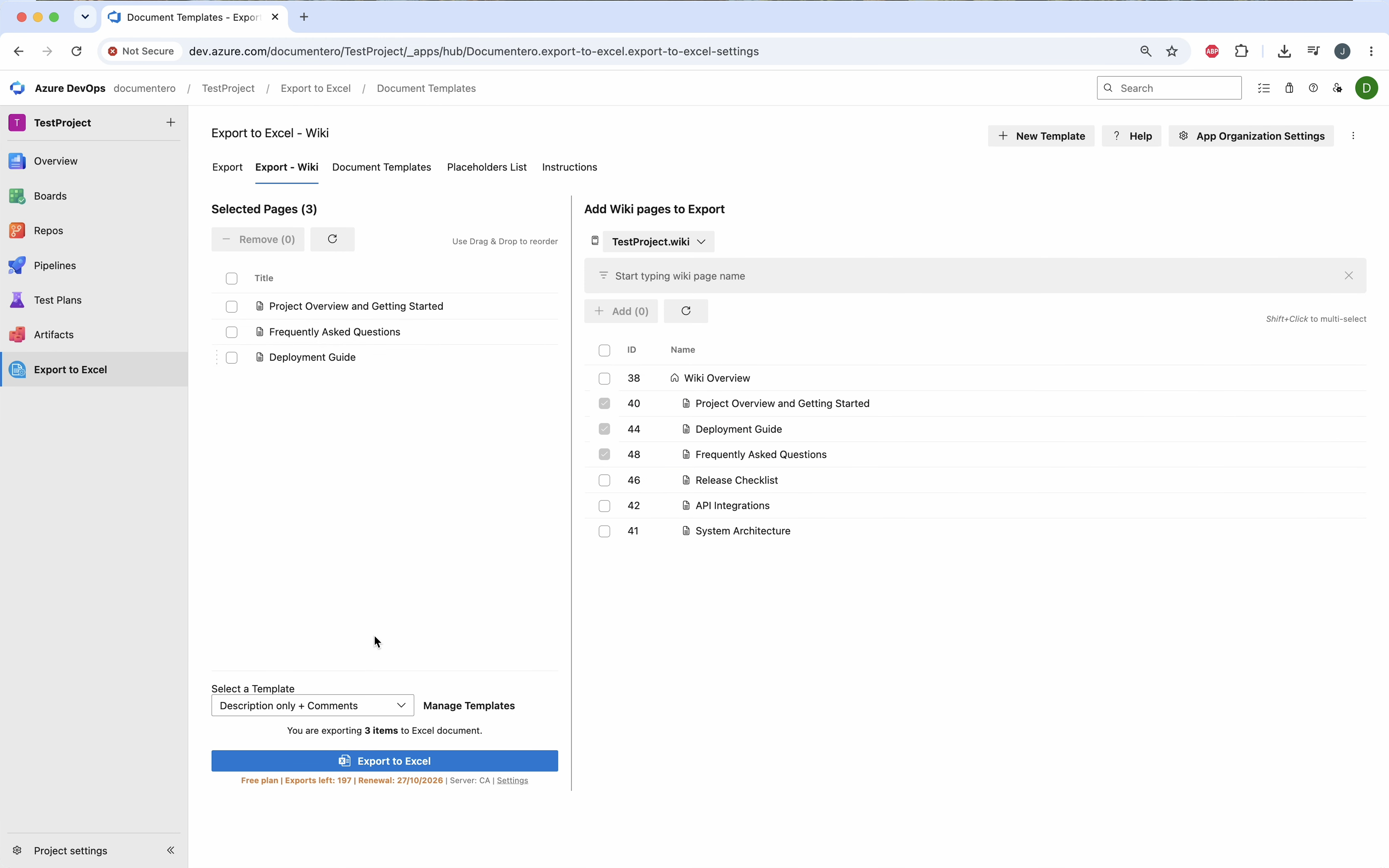
Export wiki pages to Excel
Export Azure DevOps wiki pages to Excel when you want page text and comments in a sheet you can filter. For a formatted PDF or Word file, export the wiki to a document instead.