Email related items when a stage succeeds in Azure DevOps
When a pipeline stage succeeds, email the related work items from that run in Azure DevOps.
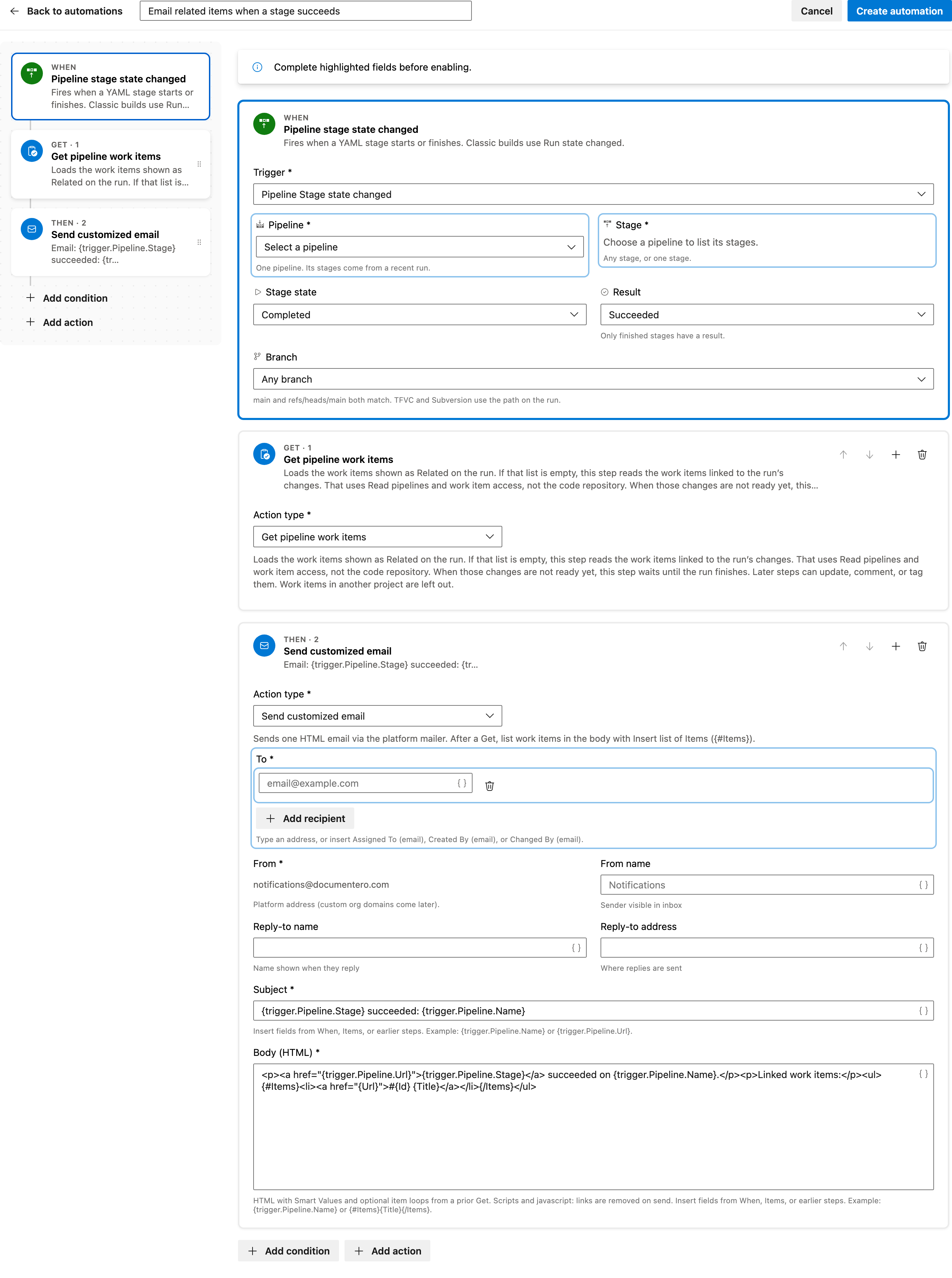
Use the Email related items when a stage succeeds template in Documentero Automations. You choose the pipeline, the stage, and the recipients before you enable it.
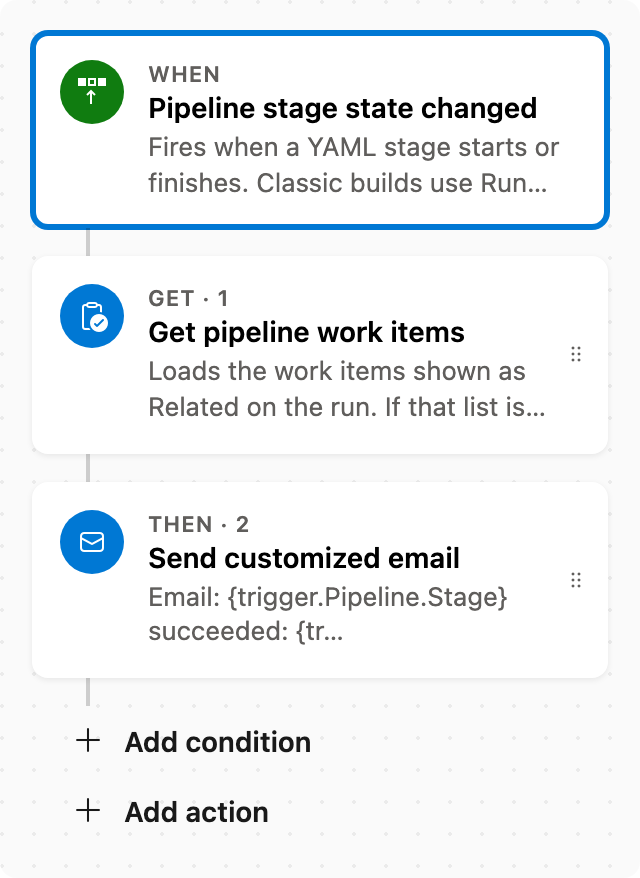
Prerequisite: Install Automations App on your Azure DevOps organization
Trigger — Pipeline stage state changed
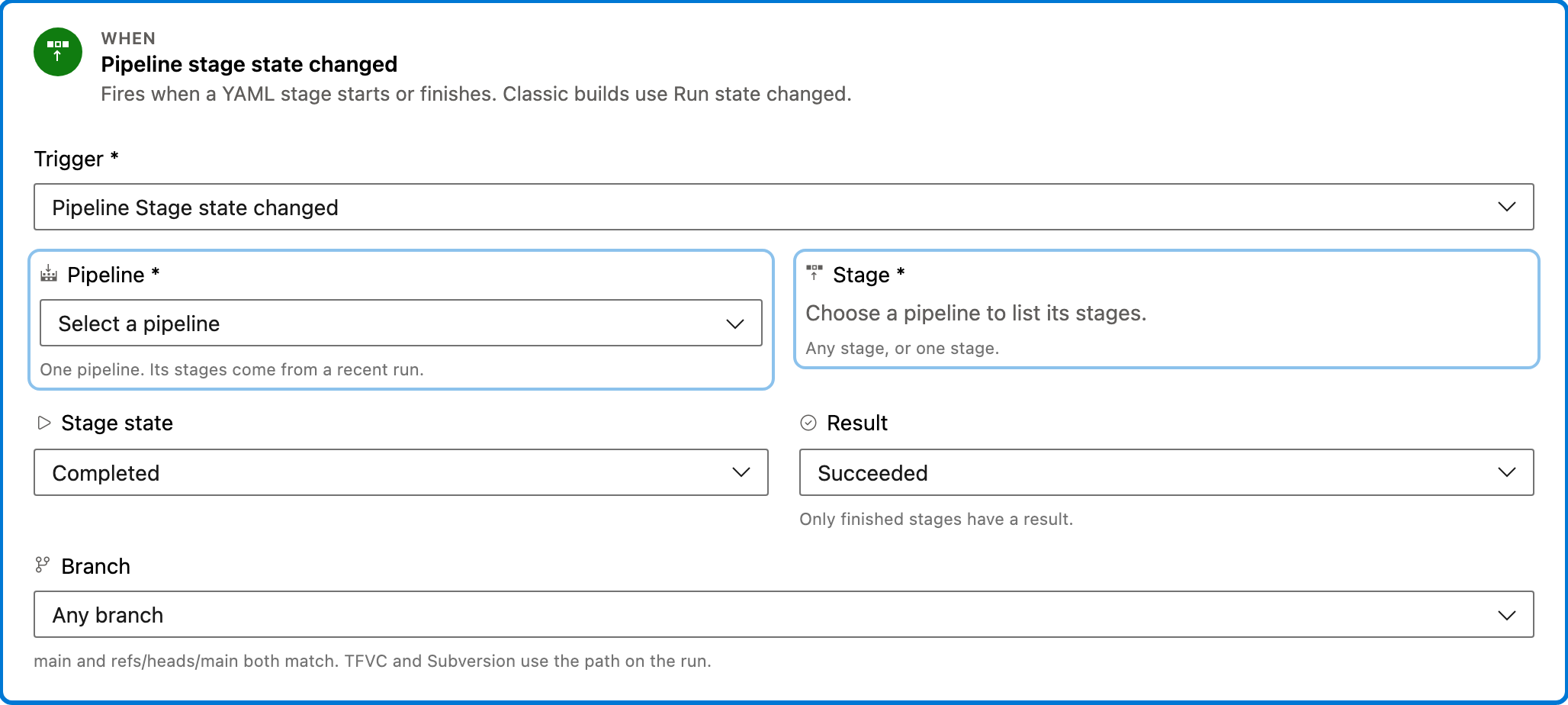
This step runs when a YAML stage starts or finishes. This template starts only when the stage is Completed and the result is Succeeded. Classic builds do not have stages; use Run state changed for those.
Configured in this template
- Stage state: Completed
- Result: Succeeded
You can customize
- Choose the pipeline and stage this rule should watch.
- Change the result if a different stage outcome should send the email.
Get — Get pipeline work items
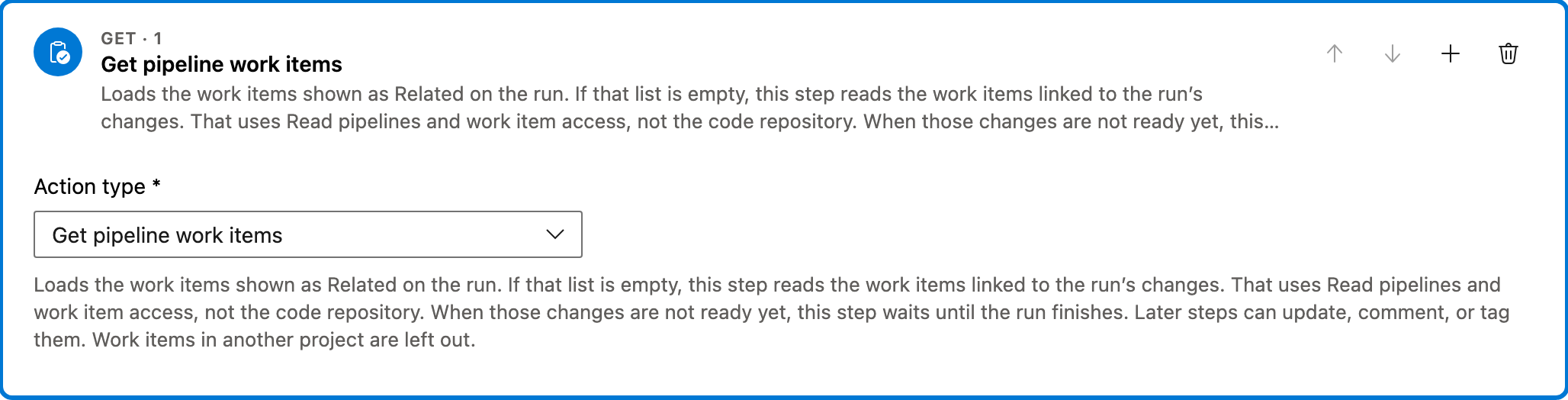
Loads the work items shown as Related on the run. If that list is empty, this step reads the work items linked to the run’s changes. It uses Read pipelines and work item access, not the code repository. If those changes are not ready yet, it waits until the run finishes. Work items in another project are left out. The email lists these items.
You can customize
- The email body lists the items this Get returns. Work items in another project are not included.
Action — Send customized email
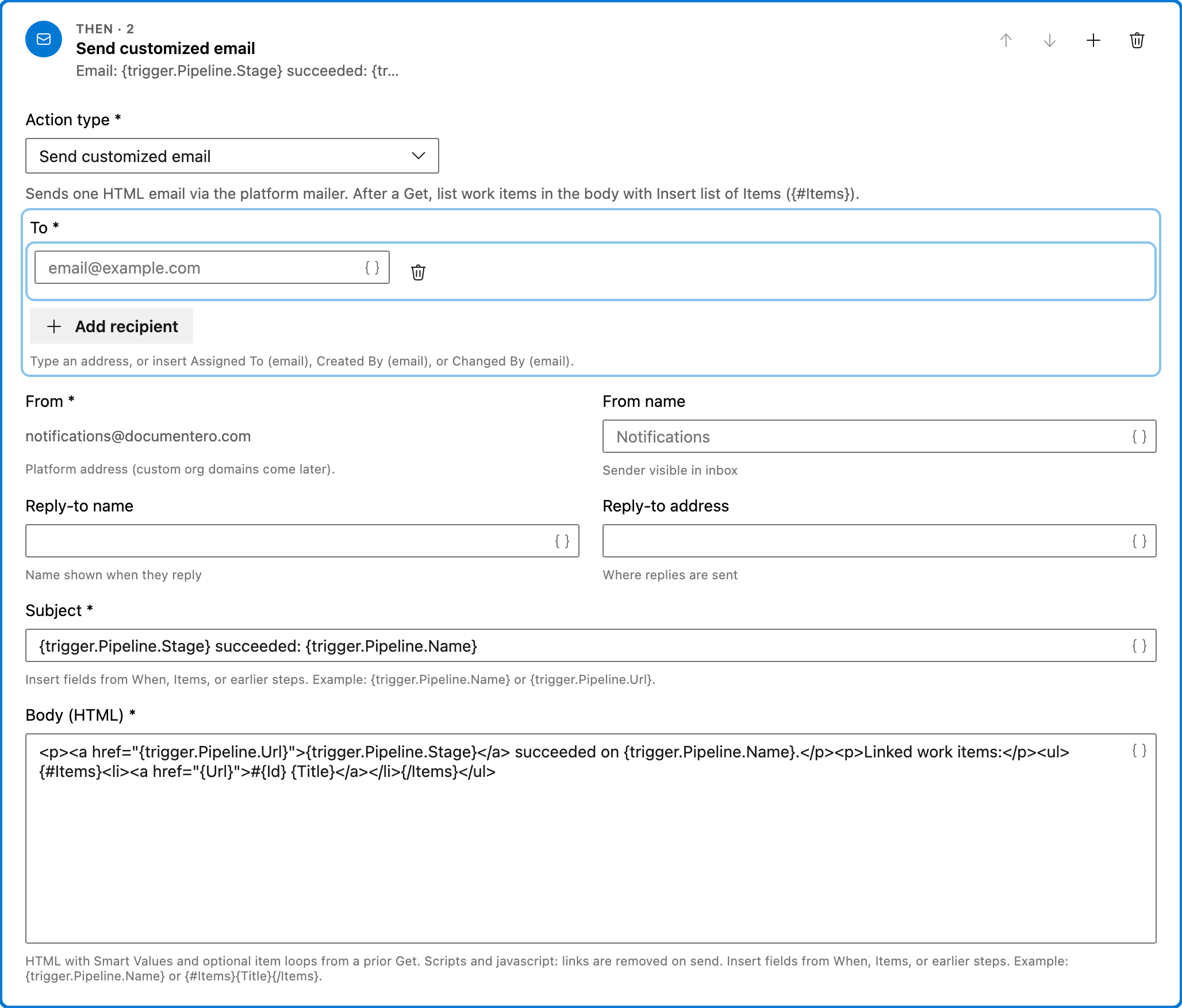
Sends one HTML email through the platform mailer. The subject names the stage and pipeline. The body links to the run and lists the work items from Get with {#Items}.
Configured in this template
- To: (empty — add recipients)
- From: notifications@documentero.com
- Subject: `
{trigger.Pipeline.Stage}succeeded:{trigger.Pipeline.Name}` - Body (HTML): `<p><a href="
{trigger.Pipeline.Url}">{trigger.Pipeline.Stage}</a> succeeded on{trigger.Pipeline.Name}.</p><p>Linked work items:</p><ul>{#Items}<li><a href="{Url}">#{Id}{Title}</a></li>{/Items}</ul>`
You can customize
- Add recipients in To. The builder blocks enable until To is set.
- Edit the subject and HTML body. Keep {#Items} if the email should list the related work items.
Full automation
Common questions
How do I email related items when a stage succeeds in Azure DevOps?
Which fields do I have to fill in before enabling this automation?
Who receives the email?
What is listed in the email?

Visual Studio Marketplace
Automations
Automate Azure DevOps workflows with triggers, actions, conditions, and scheduled rules.
Other Pipelines templates in Automations.
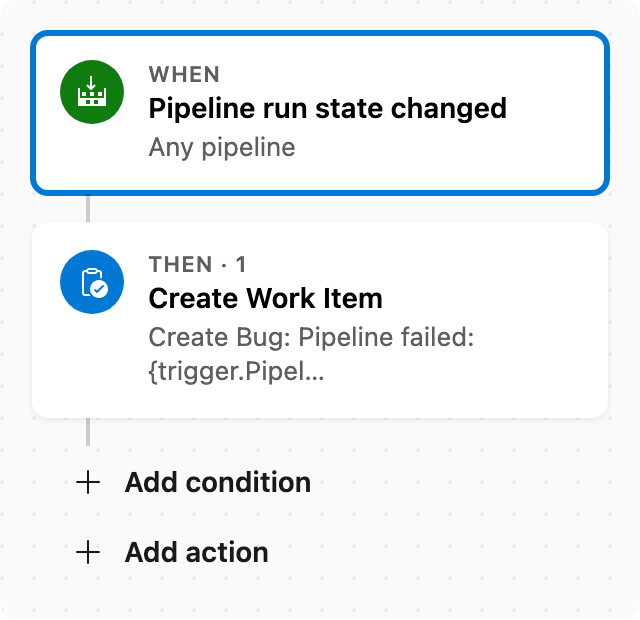
Create Bug when pipeline fails
When a pipeline fails, create a Bug linked to that run.
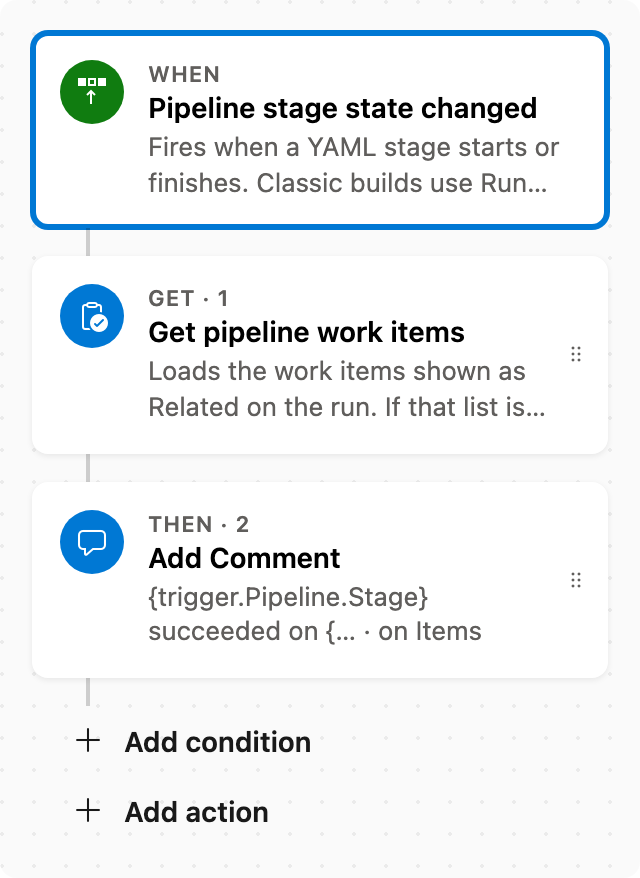
Comment on related items when a stage succeeds
When a pipeline stage succeeds, comment on the related work items from that run.
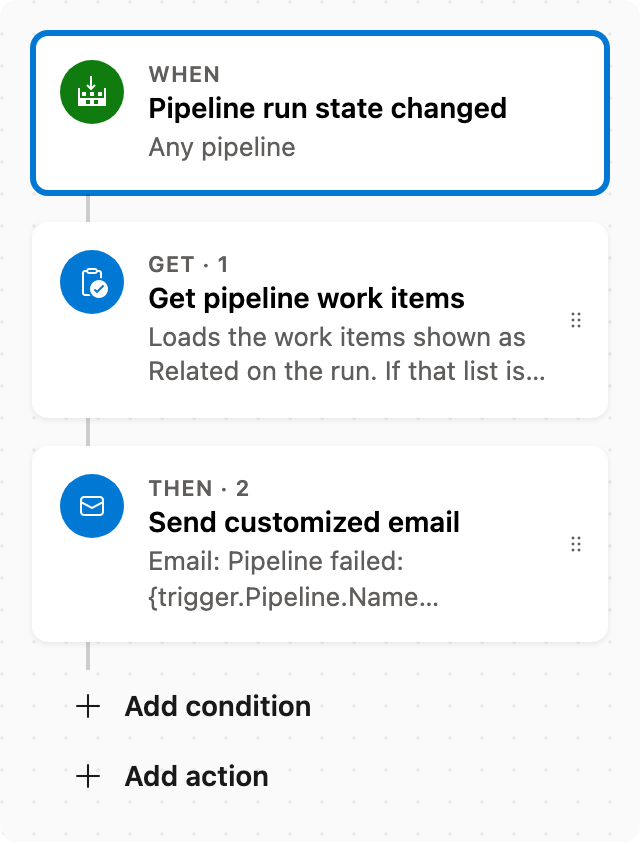
Email related items when a pipeline fails
When a pipeline fails, email the related work items from that run.
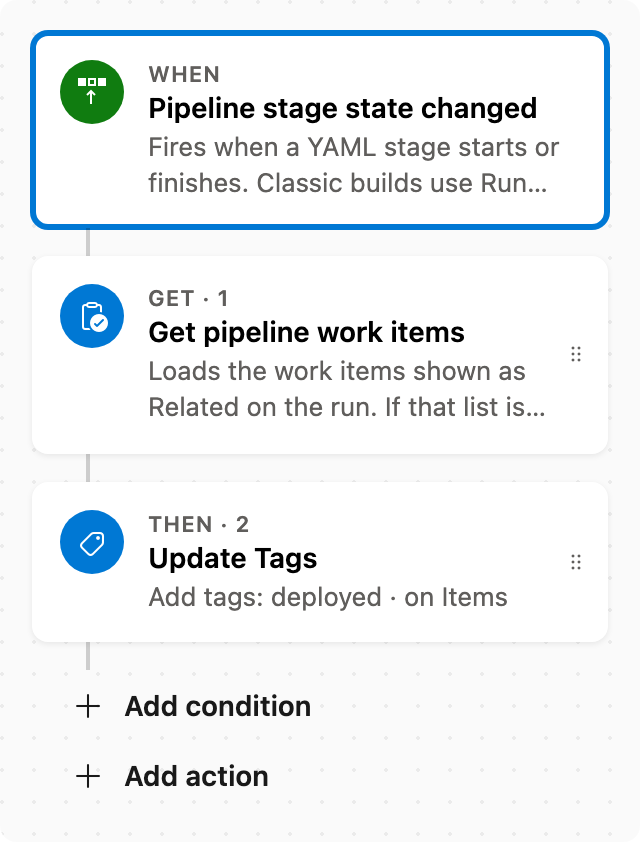
Tag related work items when a pipeline stage succeeds
When a pipeline stage succeeds, add the tag deployed to the related work items from that run.