Notify team on high-priority bugs in Azure DevOps
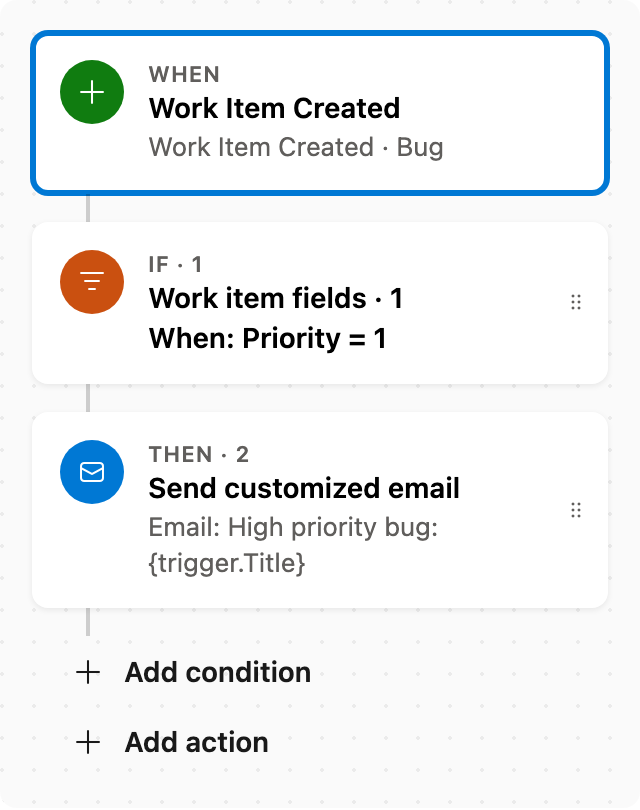
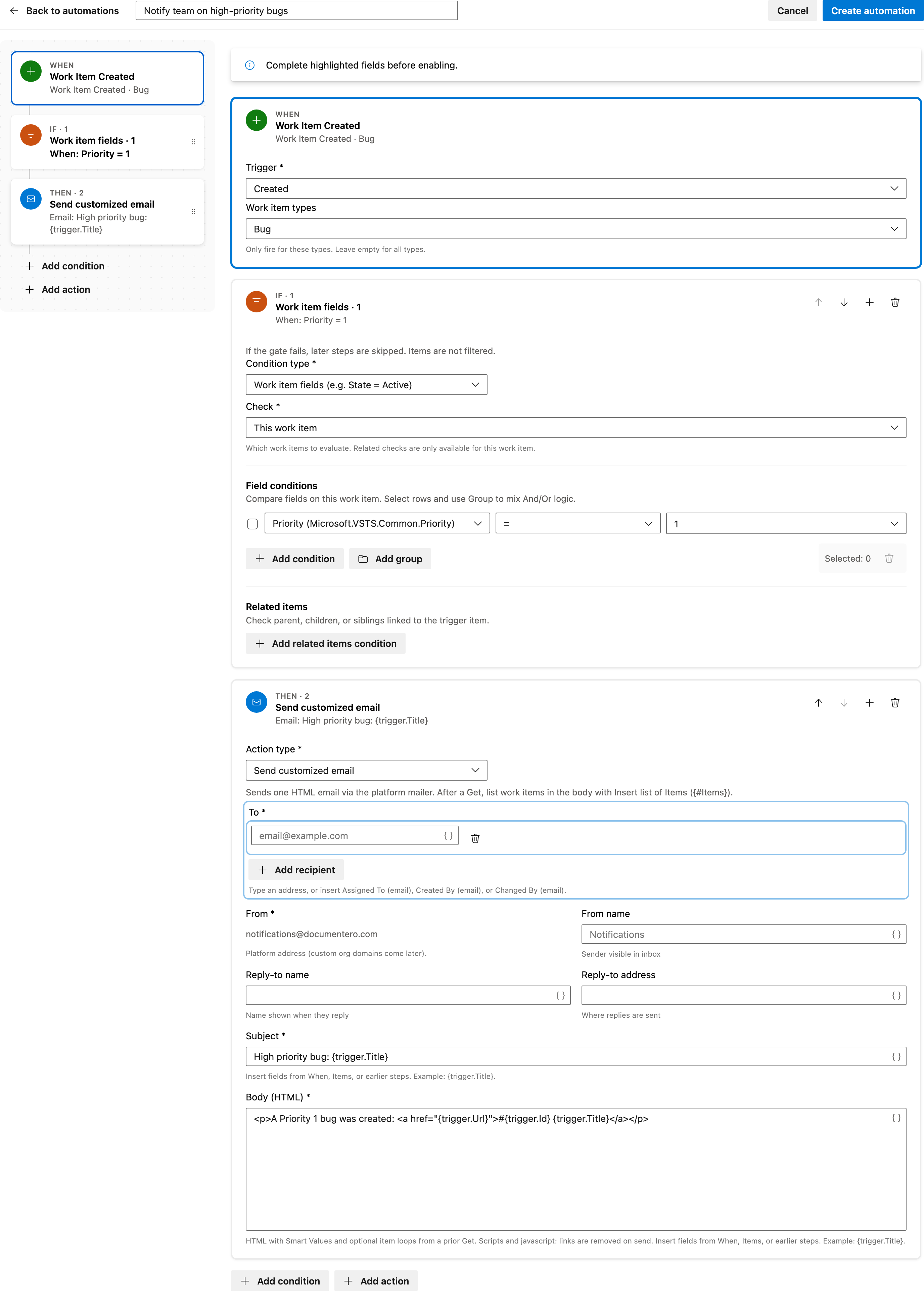
When a Bug is created with Priority 1, email the team in Azure DevOps.
By using this template, you can automatically send an email notification to your team whenever a bug with Priority 1 is created. You'll need to specify the email recipients before enabling the automation.
Prerequisite: Install Automations App on your Azure DevOps organization
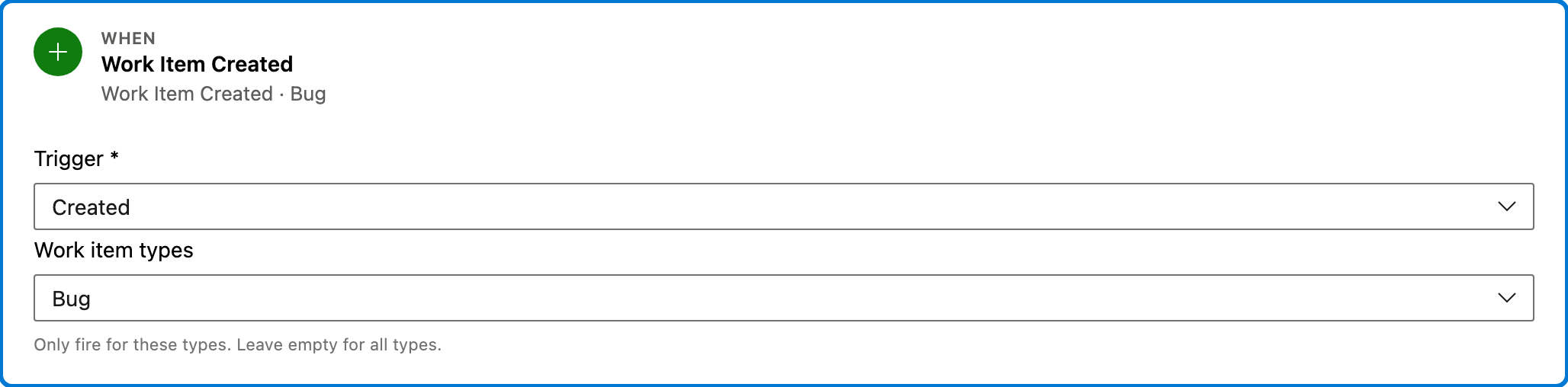
Trigger — Work Item Created
This trigger activates when a new work item of type 'Bug' is created in your Azure DevOps project. It initiates the automation flow.
Configured in this template
- Work item types: Bug
You can customize
- Change the work item type to include other types like 'Task' or 'Issue'.
Condition — Work item fields
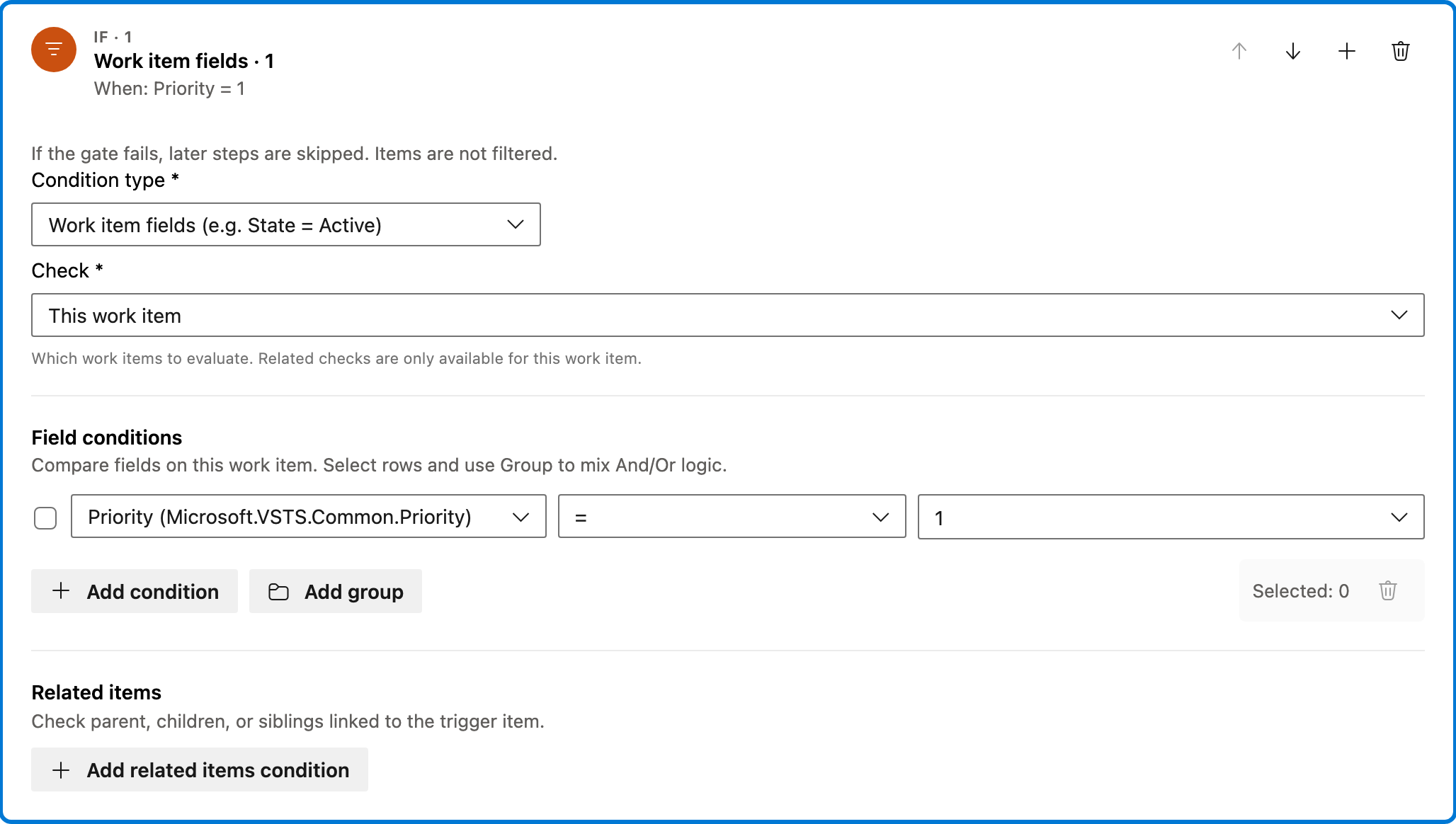
This condition checks if the newly created bug has a Priority of 1. The automation will only proceed if this condition is met.
Configured in this template
- Check: This work item
- Require: All of Items
- Field conditions: Priority = 1
- Match logic: All conditions must match (AND)
- Related work item conditions: (none)
You can customize
- Adjust the priority level to trigger notifications for different priorities.
- Add more field conditions to refine the trigger criteria.
Action — Send customized email
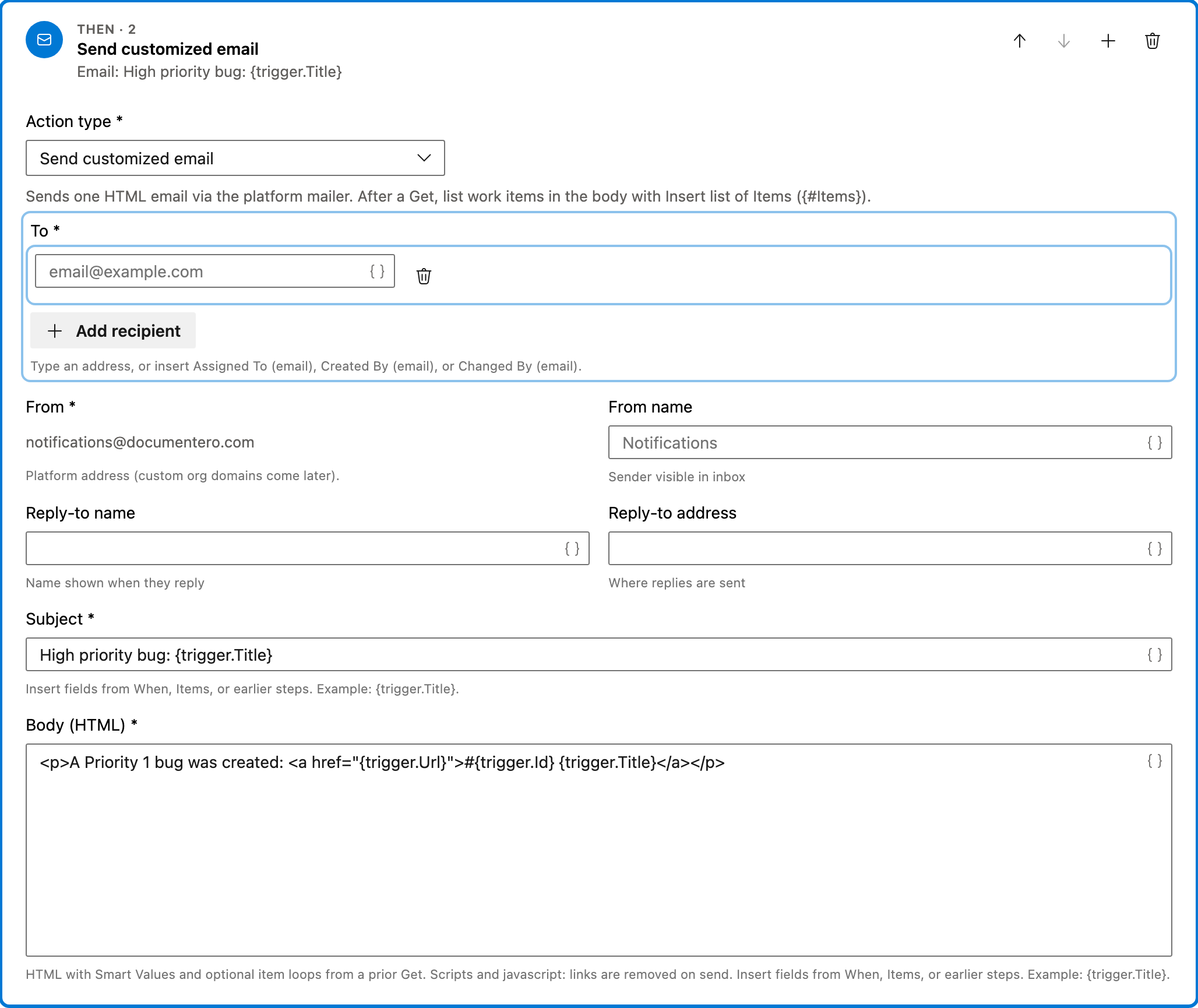
This action sends an HTML email to the specified recipients. The email includes details about the high-priority bug and a direct link to it.
Configured in this template
- To: (empty — add recipients)
- From: notifications@documentero.com
- Subject: `High priority bug:
{trigger.Title}` - Body (HTML): `<p>A Priority 1 bug was created: <a href="
{trigger.Url}">#{trigger.Id}{trigger.Title}</a></p>`
You can customize
- Add additional recipients to the 'To' field.
- Modify the email subject or body to include more information or different formatting.
Full automation
Common questions
How do I notify team on high-priority bugs in Azure DevOps?
What fields are required to enable this automation?
Can I change the work item type for this automation?
How can I test this automation?

Visual Studio Marketplace
Automations
Automate Azure DevOps workflows with triggers, actions, conditions, and scheduled rules.
Other Notifications templates in Automations.
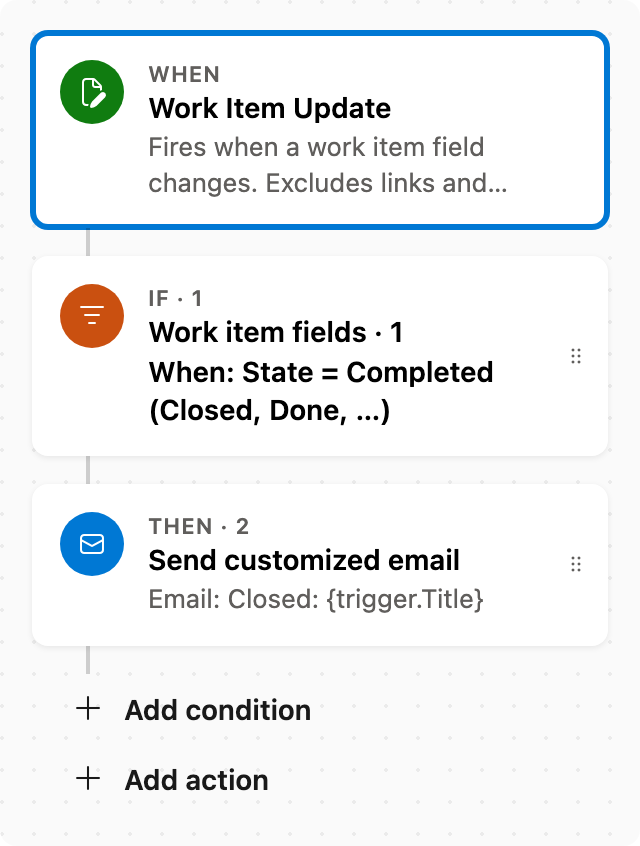
Send email when a work item is closed
When State changes to Completed (Closed or Done), send an email.
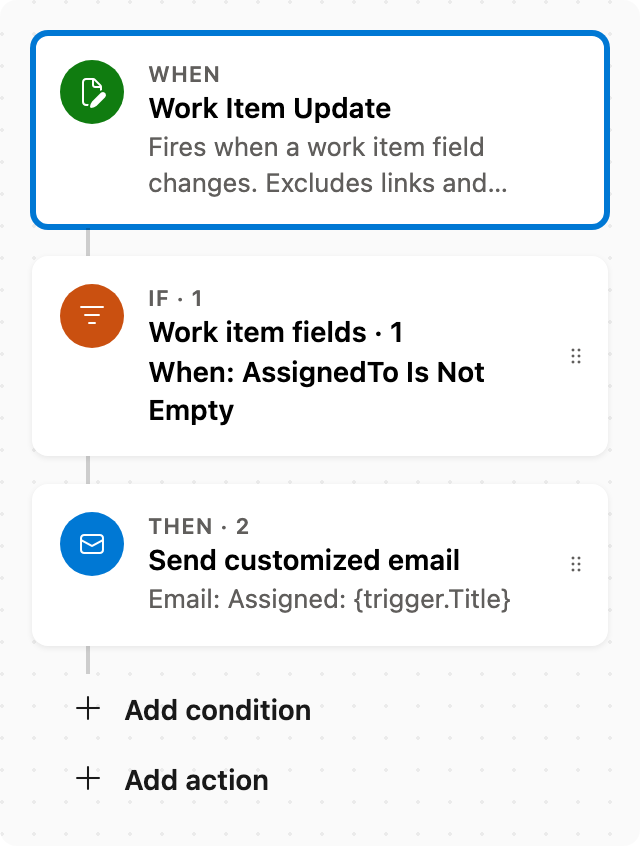
Email the assignee
When Assigned To changes, email that person. Skips the run if Assigned To is cleared.
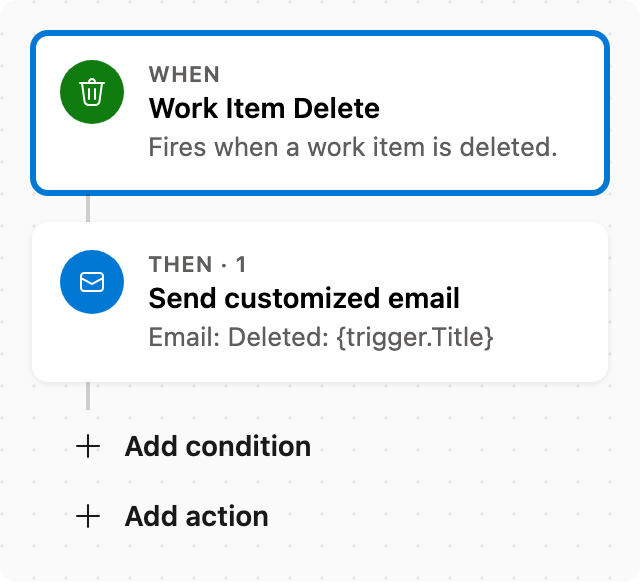
Email when a work item is deleted
When a work item is deleted, email the id, title, and who changed it. Run now is not available — delete an item to test. The Boards link may 404 after delete.