Add comment after status change in Azure DevOps
When State changes, add a comment naming who changed it and the new state in Azure DevOps.
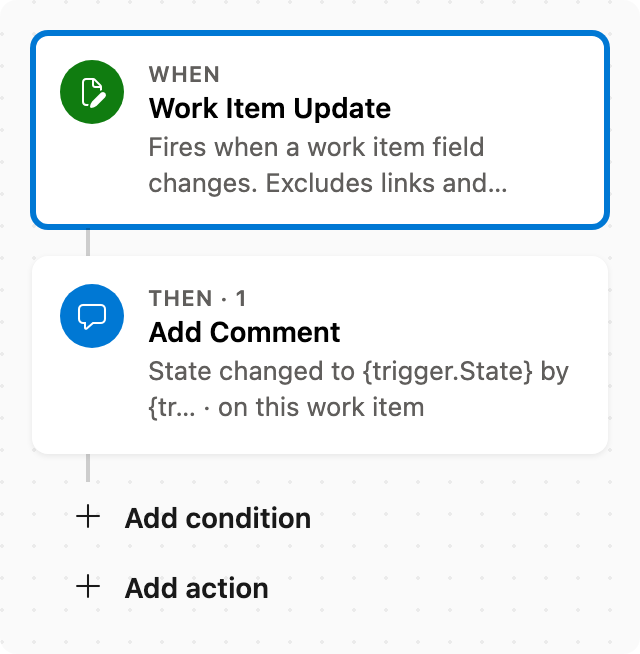
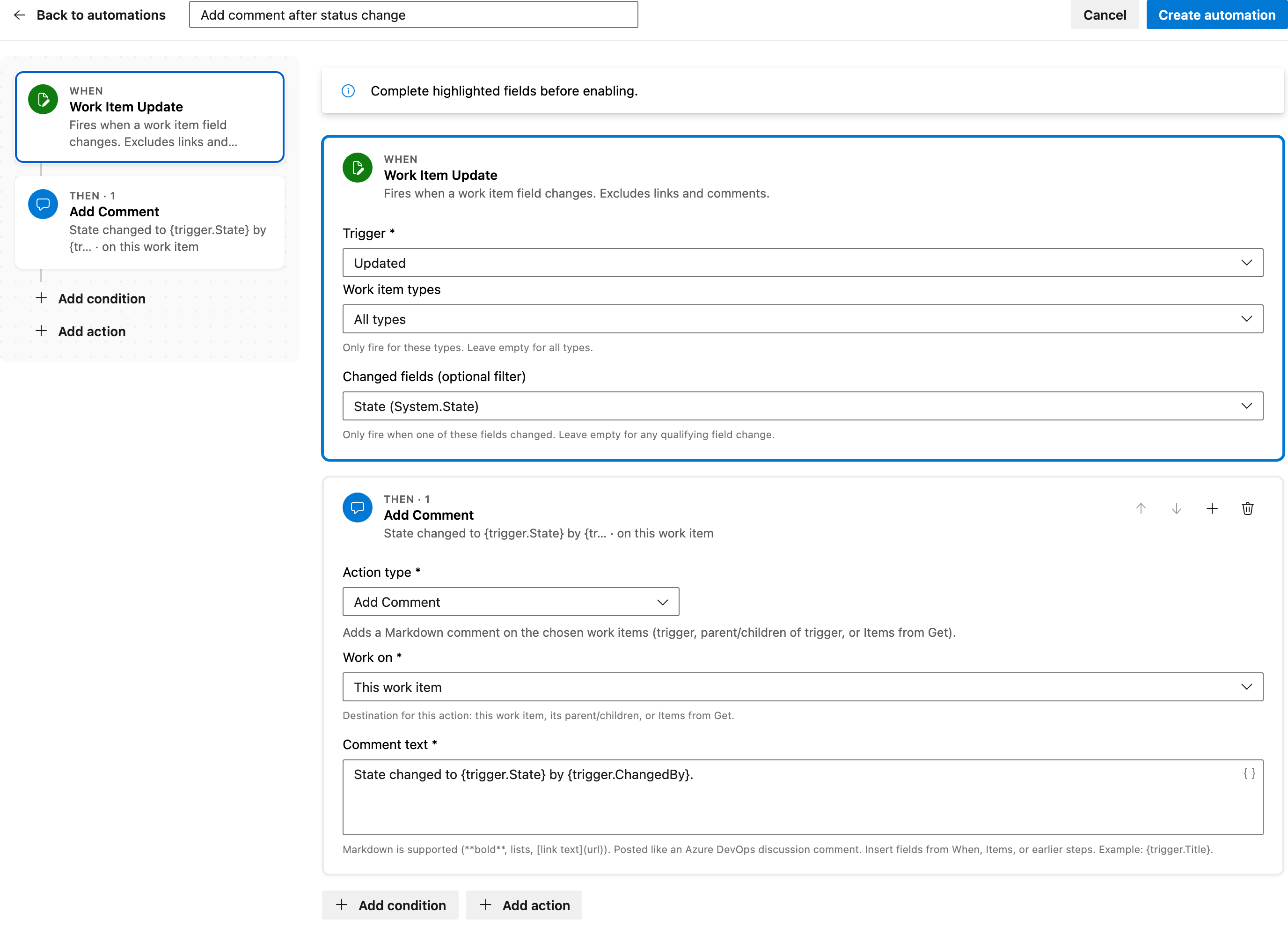
This guide will walk you through setting up the automation using a template from the Automations gallery. You'll need to specify the comment text before enabling the automation.
Prerequisite: Install Automations App on your Azure DevOps organization
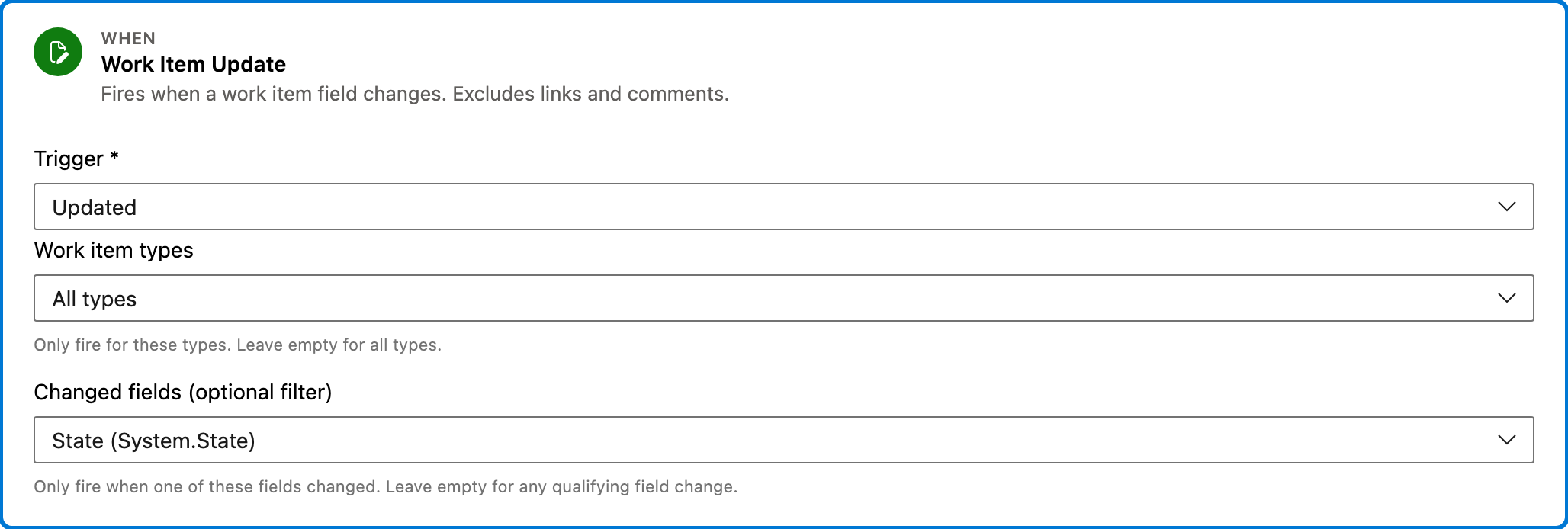
Trigger — Work Item Update
This trigger activates when a work item's state changes. It does not react to changes in links or comments, focusing solely on field updates.
Configured in this template
- Work item types: all (no filter)
- Changed fields (optional filter): State
You can customize
- Filter by specific work item types if needed.
- Add more fields to monitor besides State.
- Exclude certain states from triggering the automation.
Action — Add Comment
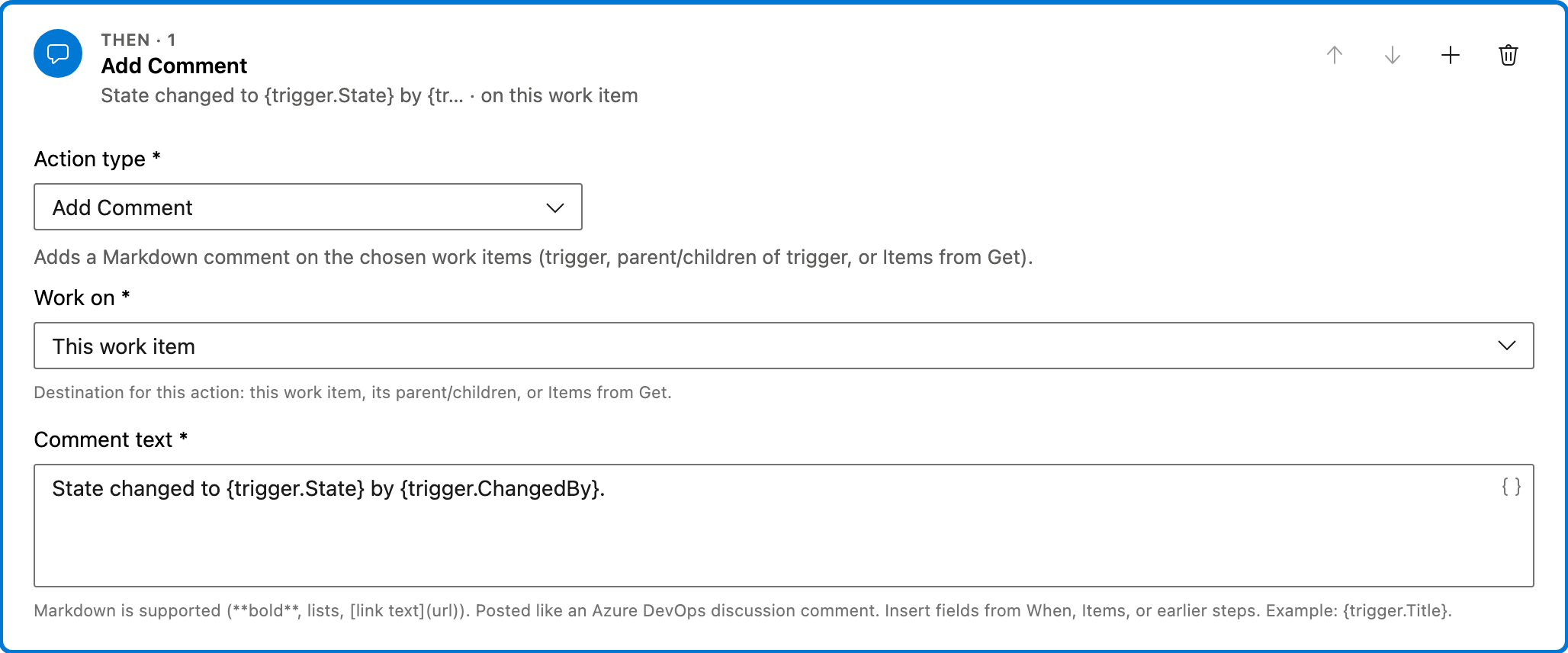
This action adds a Markdown comment to the work item that triggered the automation. The comment includes the new state and the user who made the change.
Configured in this template
- Work on: This work item
- Comment text: `State changed to
{trigger.State}by{trigger.ChangedBy}.`
You can customize
- Modify the comment text to include additional information.
- Change the format of the comment to suit project needs.
- Add conditions to limit when comments are added.
Full automation
Common questions
How do I add comment after status change in Azure DevOps?
What fields are required to enable this automation?
Can I change the work item types this automation applies to?
How can I test this automation?
Is it possible to schedule when this automation runs?

Visual Studio Marketplace
Automations
Automate Azure DevOps workflows with triggers, actions, conditions, and scheduled rules.
Other Work Items templates in Automations.
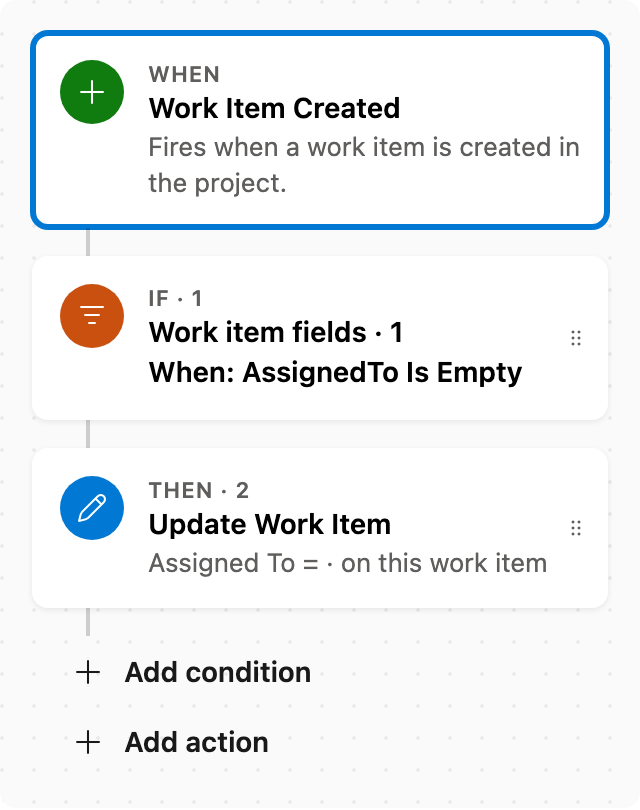
Auto assign new work items
When a work item is created with no assignee, set Assigned To. Skips items that already have someone assigned.
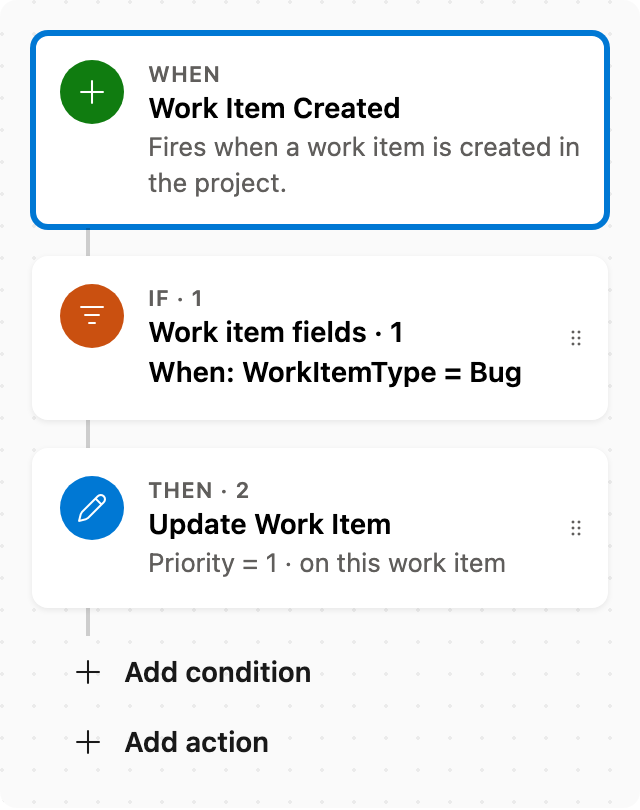
Set Priority by rules
When a work item is created as a Bug, set Priority to 1. Adjust conditions as needed.
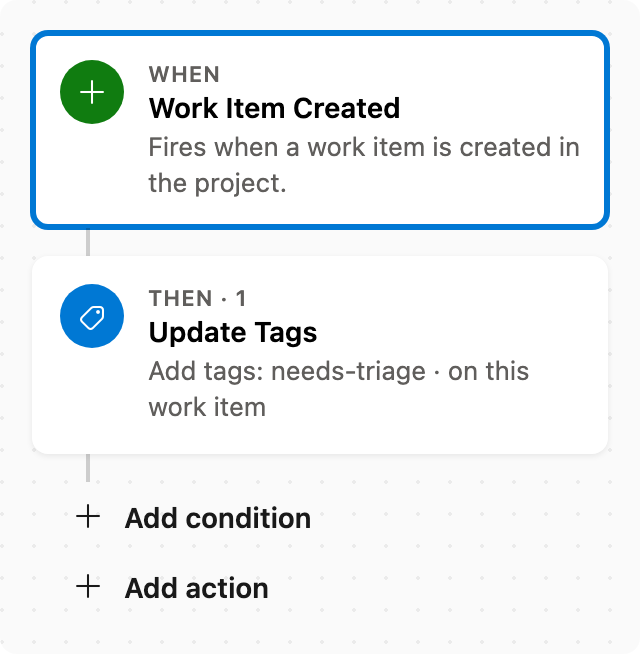
Auto tag new work items
When a work item is created, add tags without removing existing ones.
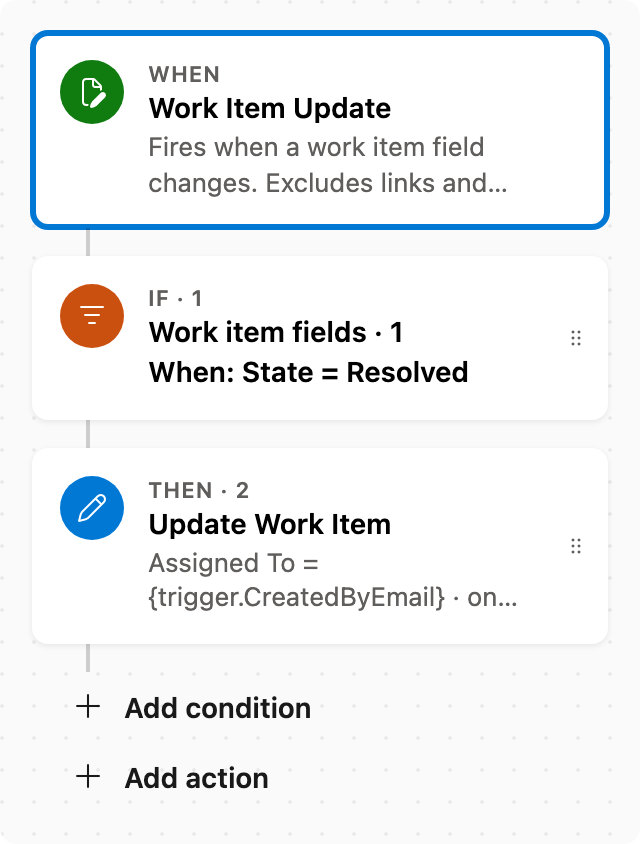
Reassign to creator when resolved
When State changes to Resolved, assign the item to whoever created it (typical verification). Scrum and Basic have no Resolved state — this only fires when the type has one.