Tag restored work in Azure DevOps
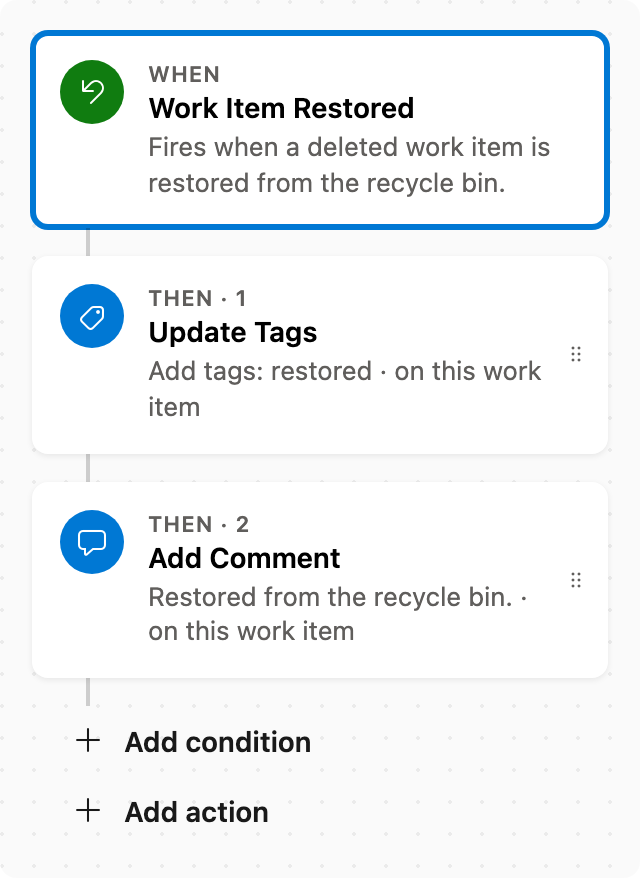
When a work item is restored from the recycle bin, add a restored tag and a comment in Azure DevOps.
To use this automation, you will need to set the tag name and comment text before enabling it. This template is perfect for keeping track of restored work items efficiently.
Prerequisite: Install Automations App on your Azure DevOps organization
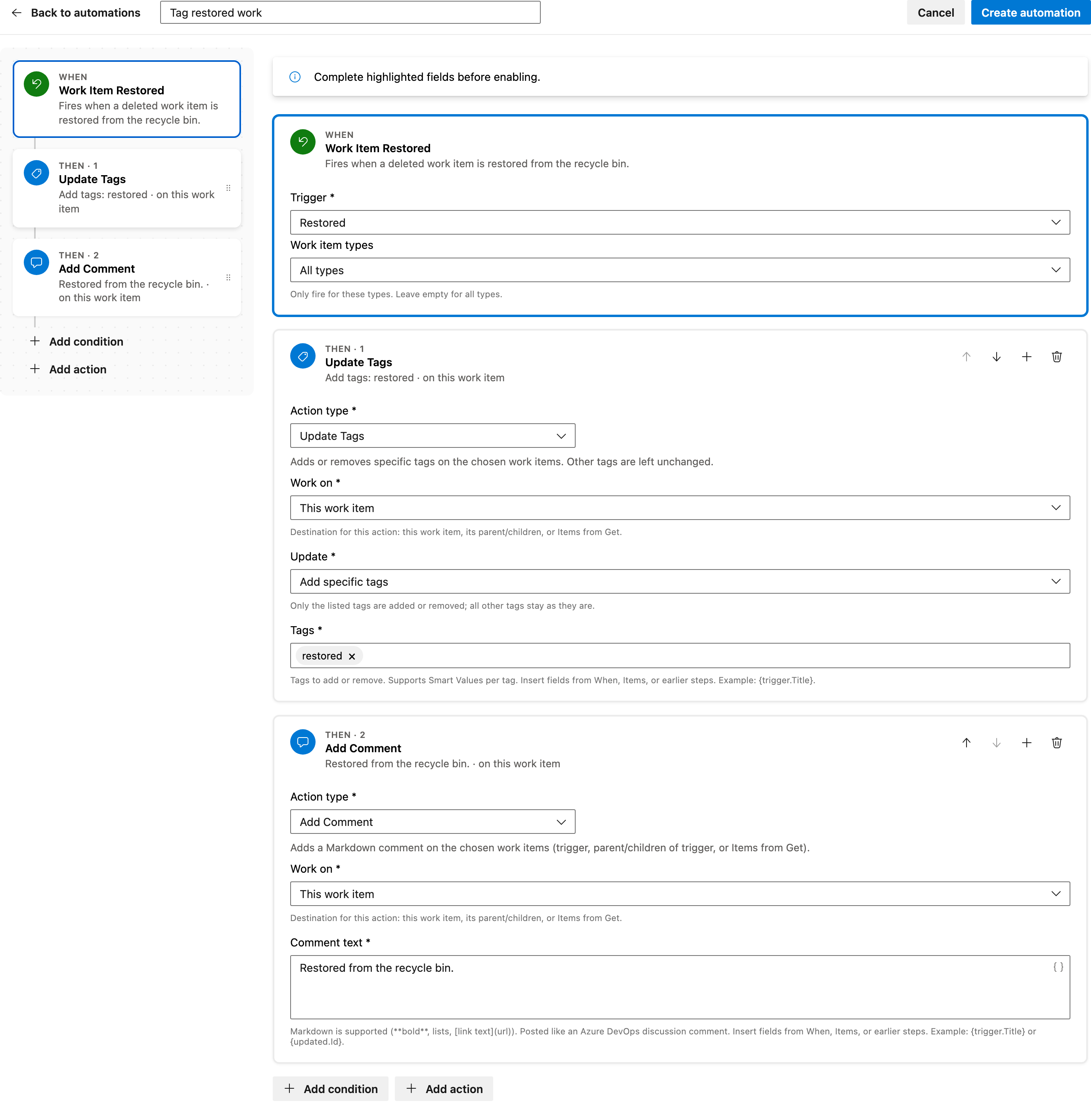
Trigger — Work Item Restored
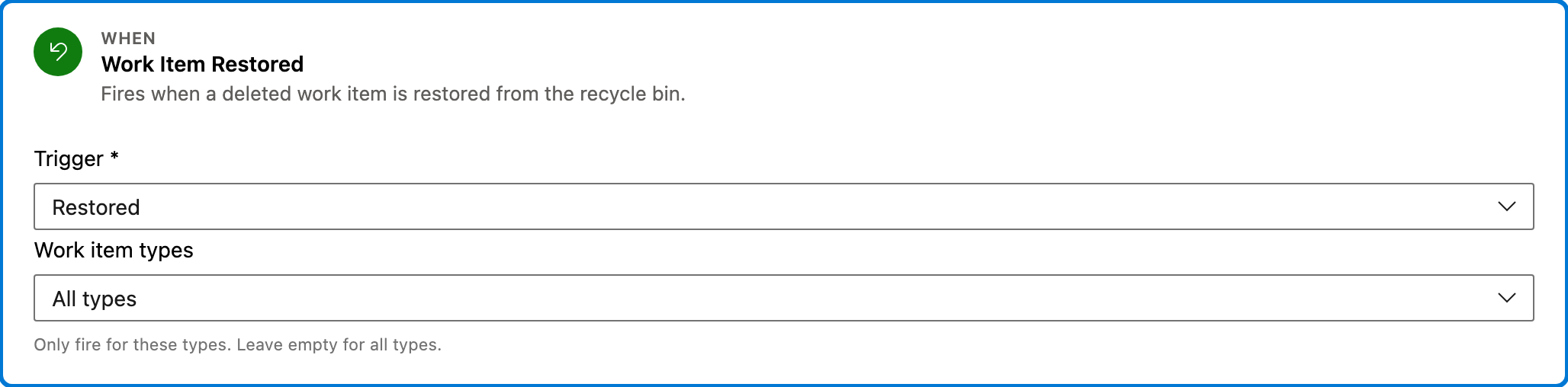
This trigger activates when a deleted work item is restored from the recycle bin. It ensures that the automation only runs on work items that have been brought back from deletion.
Configured in this template
- Work item types: all (no filter)
You can customize
- Limit the trigger to specific work item types if needed.
Action — Update Tags
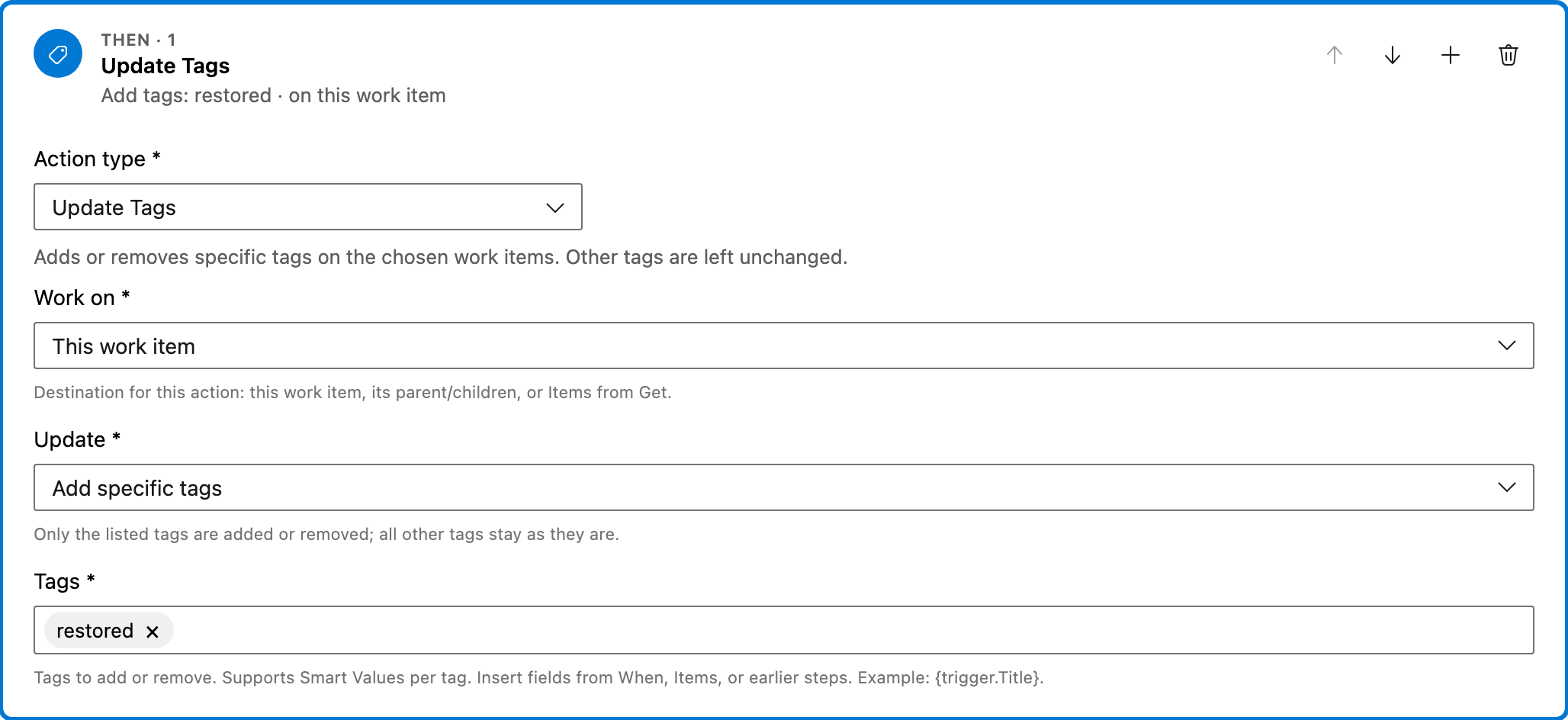
This action adds the 'restored' tag to the work item that was triggered. Other existing tags on the work item remain unchanged.
Configured in this template
- Work on: This work item
- Update: Add specific tags
- Tags: restored
You can customize
- Change the tag to a different name if 'restored' does not fit your project's terminology.
Action — Add Comment
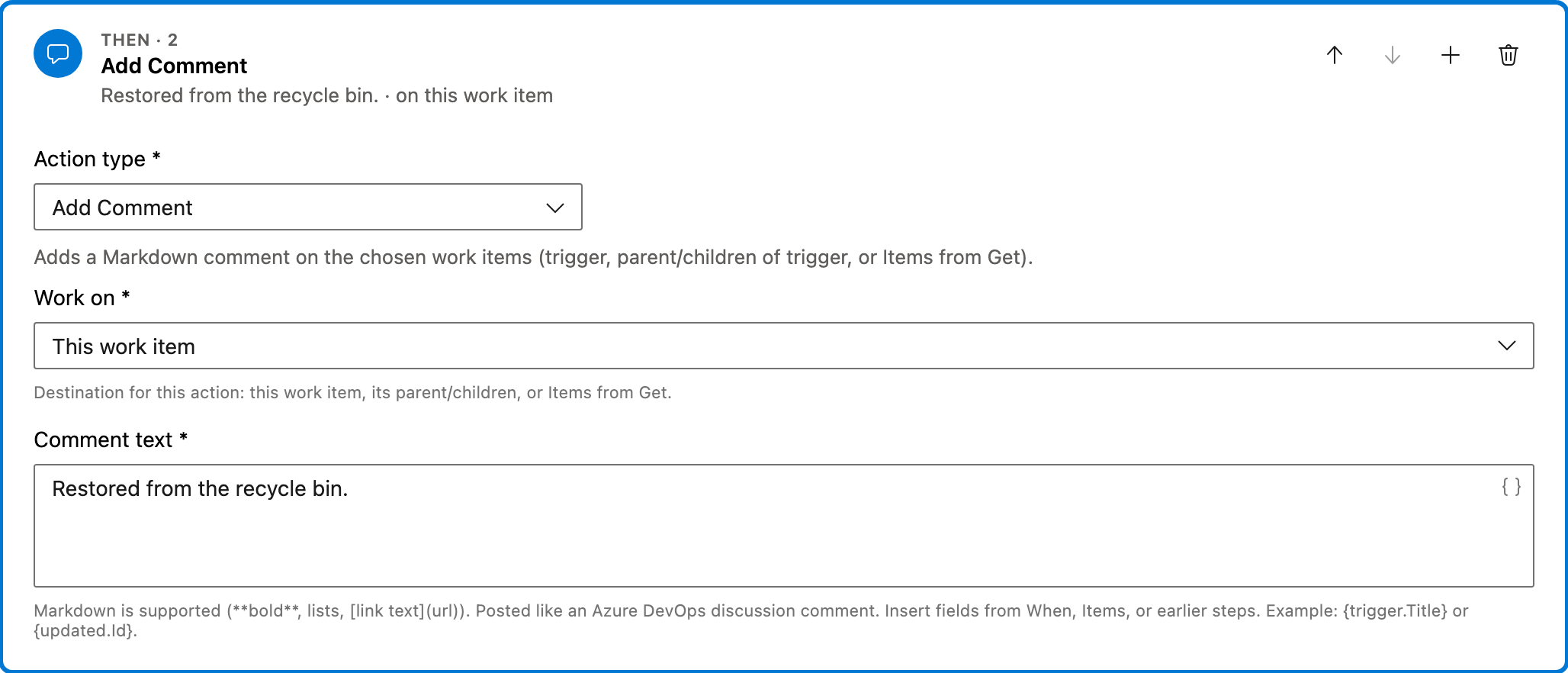
This action adds a comment to the restored work item, noting that it has been restored from the recycle bin. This provides additional context for team members reviewing the item.
Configured in this template
- Work on: This work item
- Comment text: Restored from the recycle bin.
You can customize
- Modify the comment text to include more details or specific instructions.
Full automation
Common questions
How do I tag restored work in Azure DevOps?
What fields must be filled before enabling this automation?
Can I change the work item types this automation applies to?
How can I test this automation?

Visual Studio Marketplace
Automations
Automate Azure DevOps workflows with triggers, actions, conditions, and scheduled rules.
Other Work Items templates in Automations.
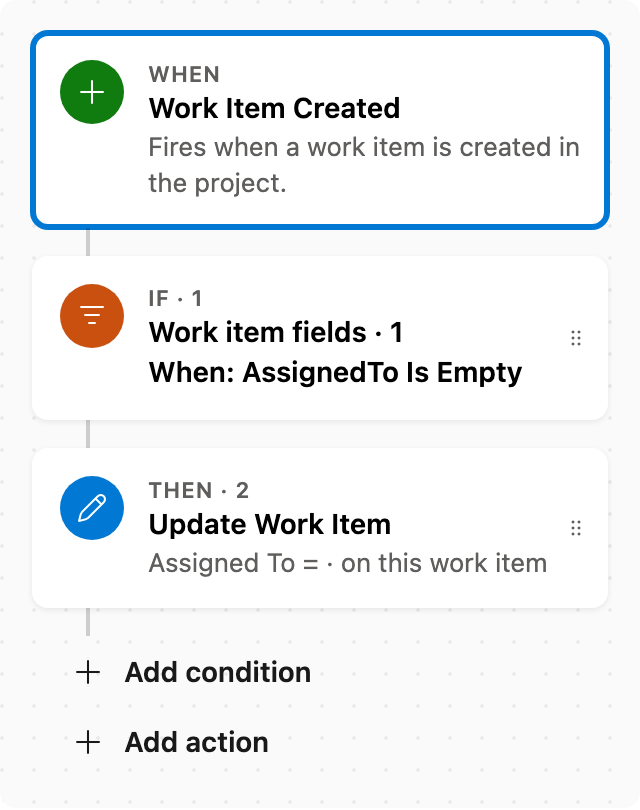
Auto assign new work items
When a work item is created with no assignee, set Assigned To. Skips items that already have someone assigned.
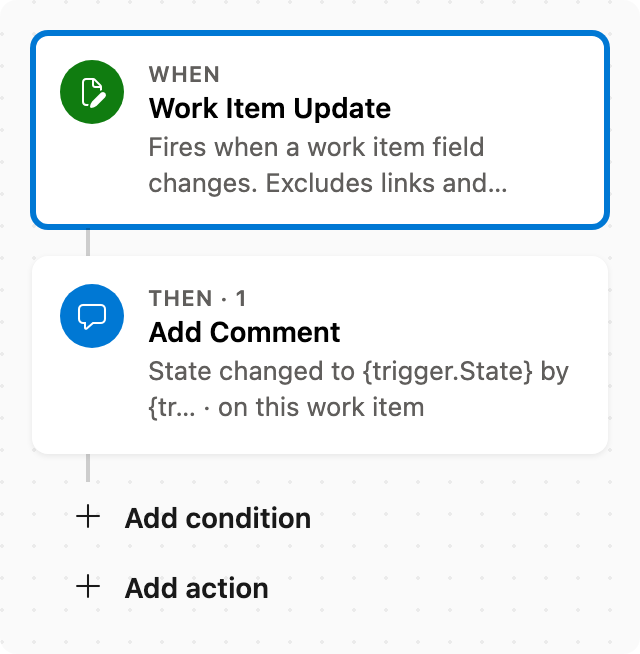
Add comment after status change
When State changes, add a comment naming who changed it and the new state.
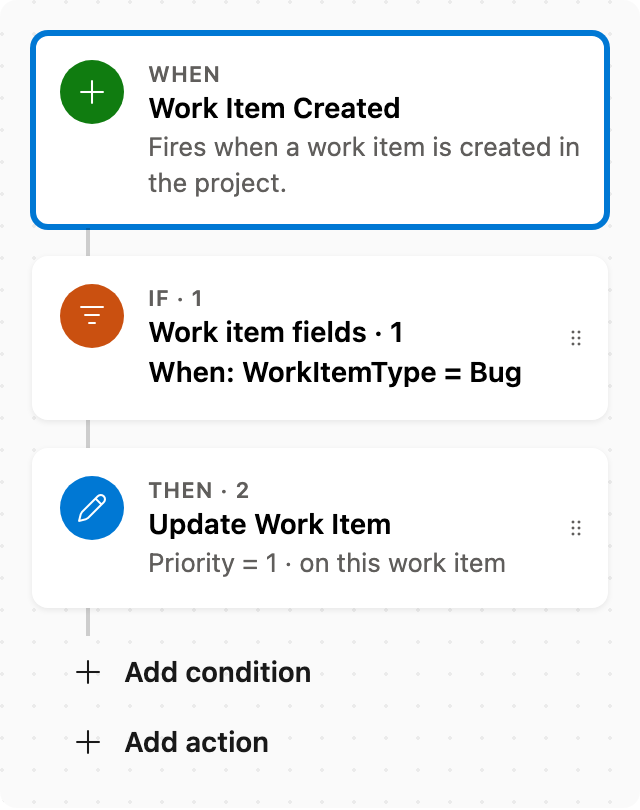
Set Priority by rules
When a work item is created as a Bug, set Priority to 1. Adjust conditions as needed.
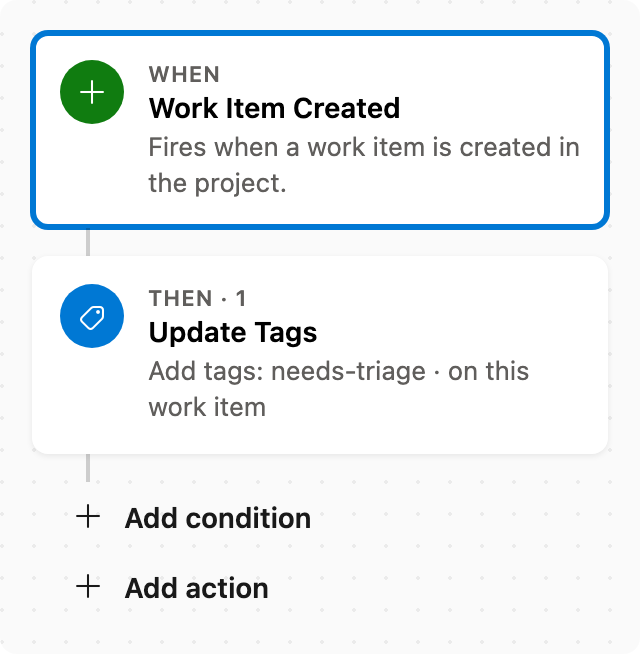
Auto tag new work items
When a work item is created, add tags without removing existing ones.